


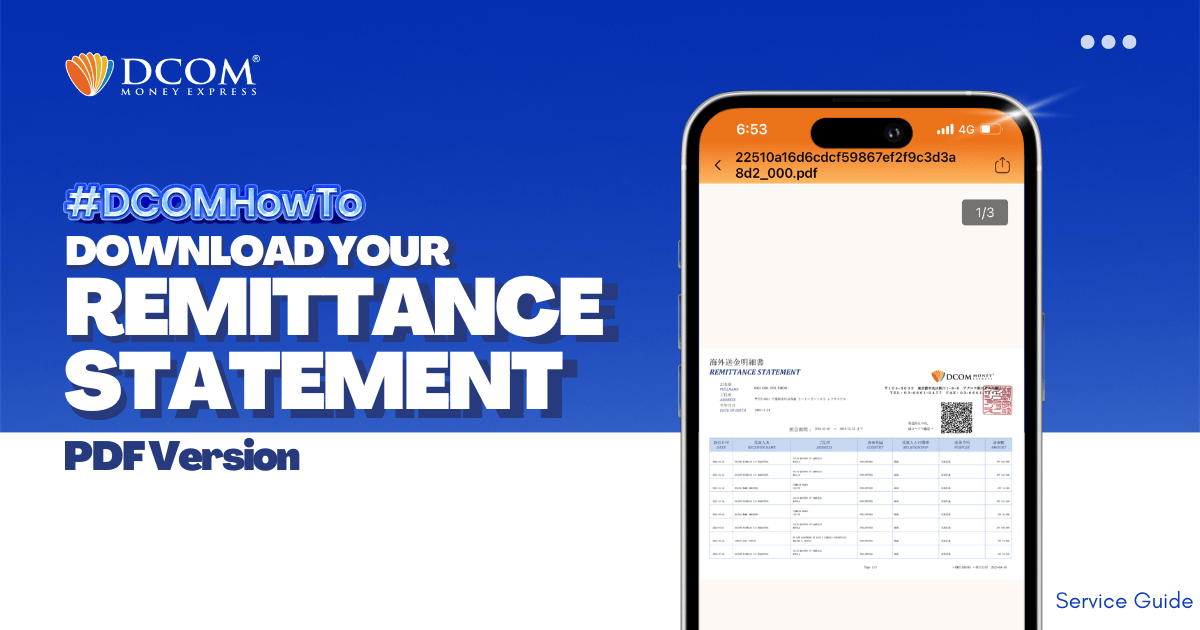
With DCOM, you can easily download your Remittance Statement to view your remittance transactions or use it for your tax refund.
Simply follow the steps below:
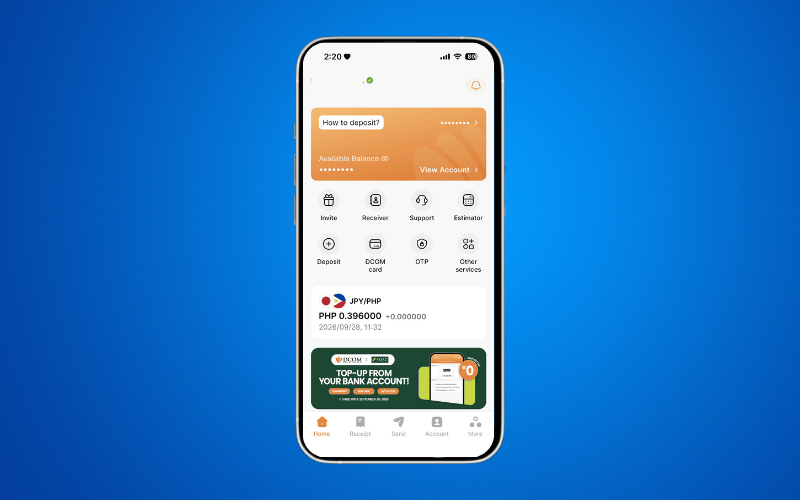
Step 1: From the Home screen, tap ACCOUNT.
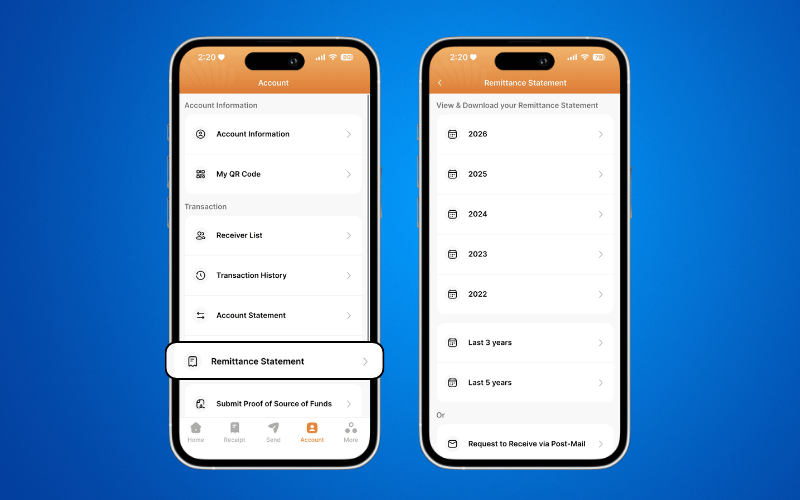
Step 2: Tap REMITTANCE STATEMENT and select the year you want to download.
Step 3: Select the receiver name for the Remittance Statement you want to request.
- To include all transactions in your Remittance Statement, tap SELECT ALL, then tap GET PDF.
- To include transactions for specific receivers only, select the receiver name, then tap GET PDF.
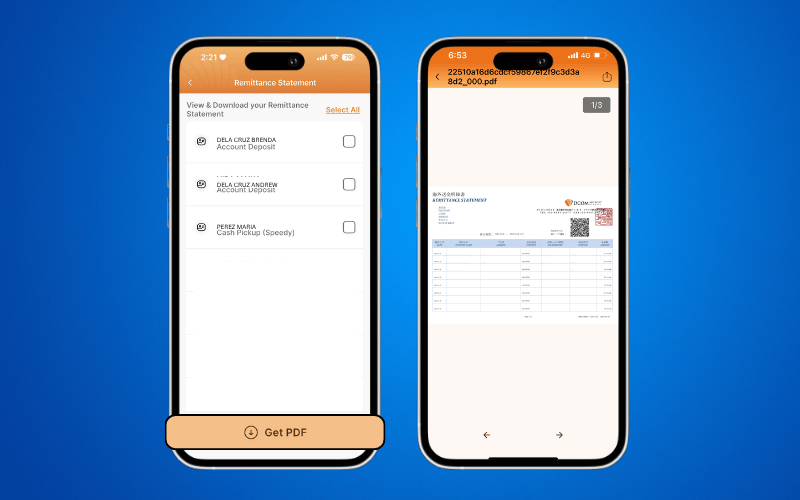
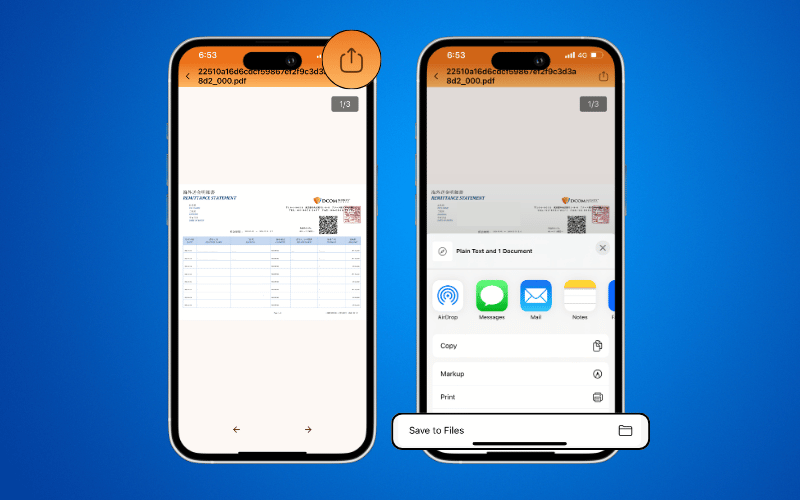
Step 4: Tap the SHARE button and save the PDF file to your device’s Files.
Need a printed copy? You can also check our guide on how to print your Remittance Statement PDF at 7-Eleven using the 7-Eleven Multicopy app.