


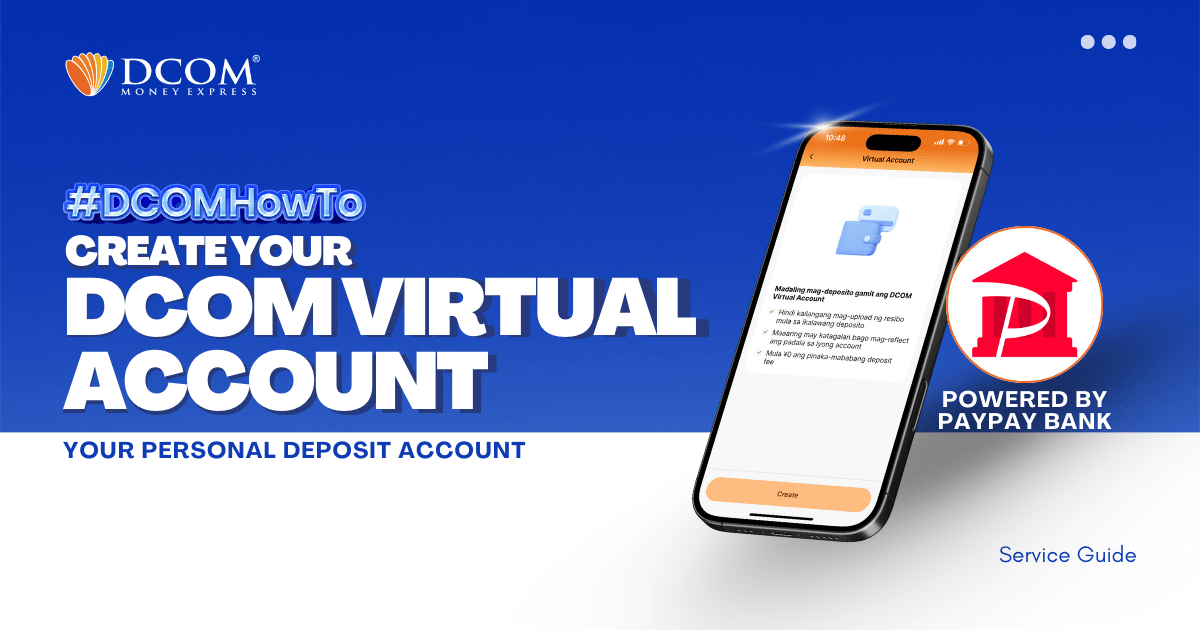
Using the DCOM App, you can make your own personal deposit account powered by PayPay Bank.
HOW TO USE THE DCOM VIRTUAL ACCOUNT?
1. You can connect your Virtual Account as your DCOM Main Wallet.
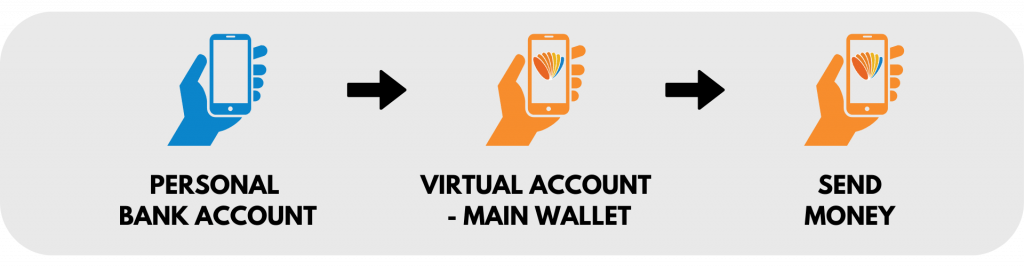
Once you make a deposit to the Virtual Account details, funds will immediately reflect in your DCOM Account, real-time.
2. You can connect your Virtual Account to a designated Receiver.
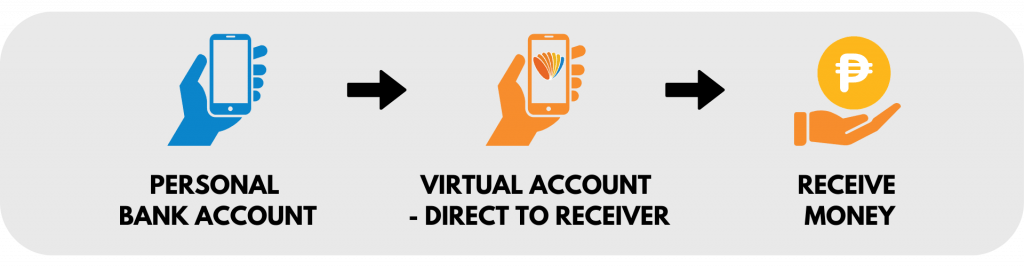
If you make a transfer to the Virtual Account details, transaction will be immediately processed to your chosen Receiver.
HOW TO CREATE THE VIRTUAL ACCOUNT?
STEP 1. Open your DCOM App and press ACCOUNT.
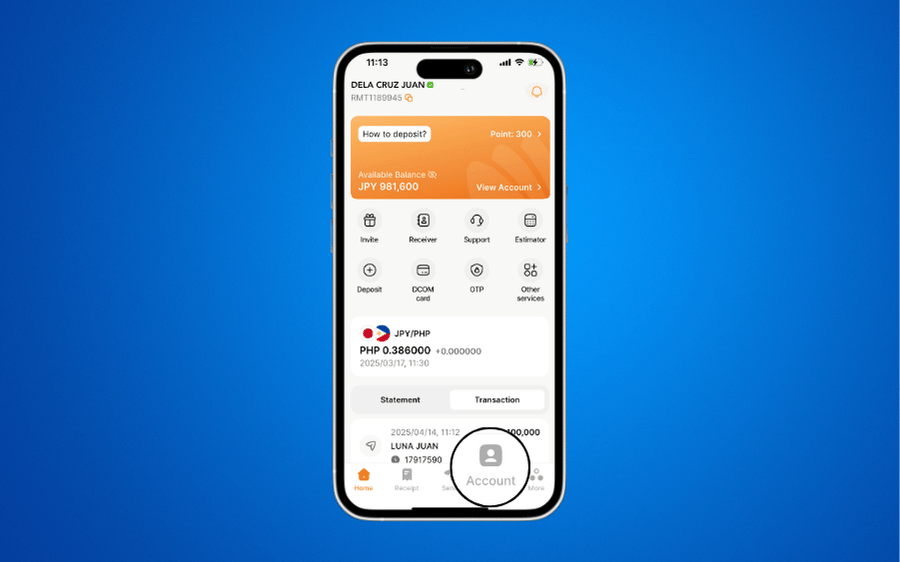
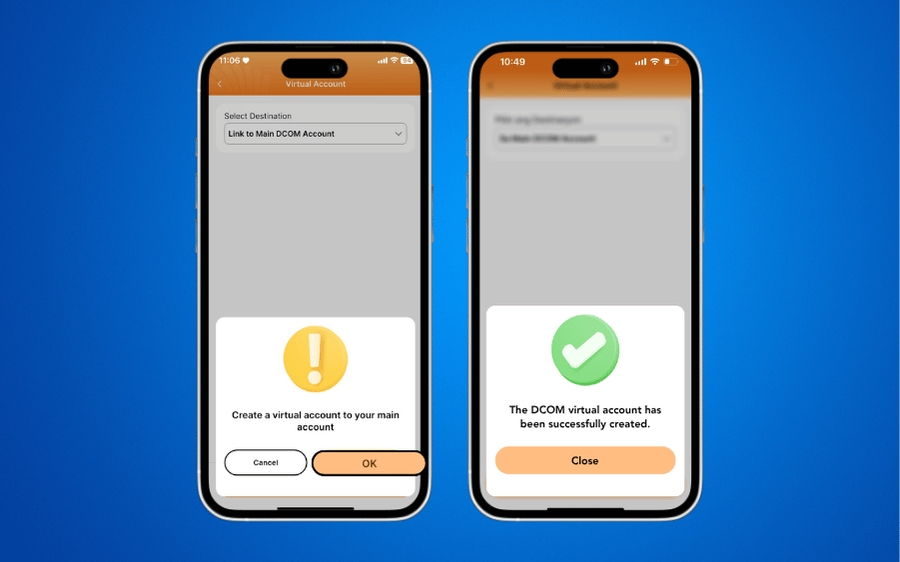
STEP 2. Choose VIRTUAL ACCOUNT and press REGISTER. As a default, your Virtual Account will be connected to your MAIN DCOM ACCOUNT.
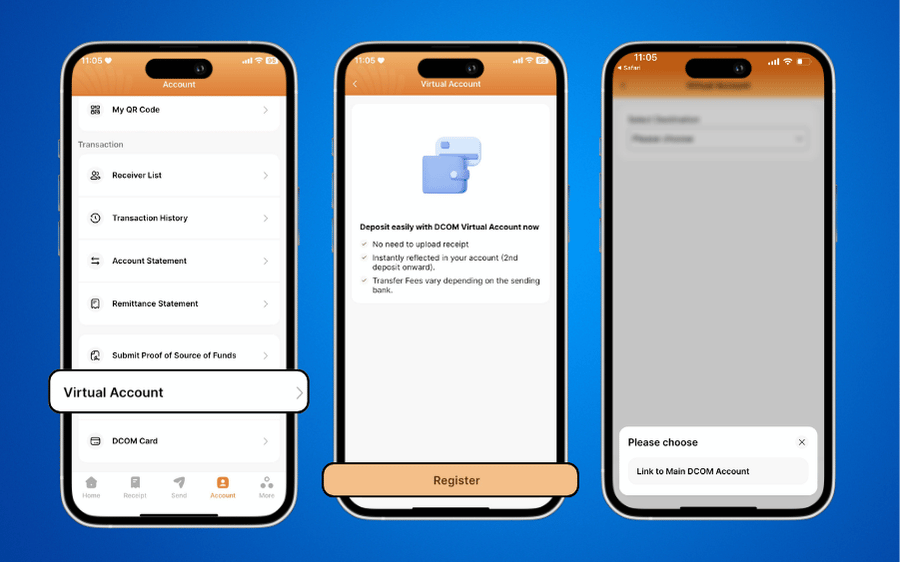
STEP 3. Click OK and you already have your Virtual Account details.
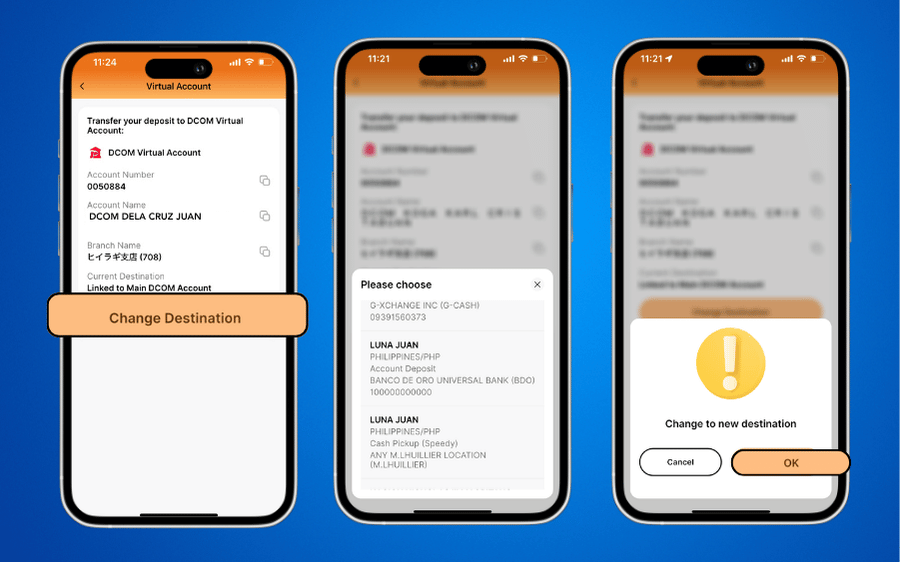
HOW TO CHANGE THE CONNECTED ACCOUNT?
STEP 1. Press CHANGE DESTINATION. Select the Receiver you want to designate and press OK.
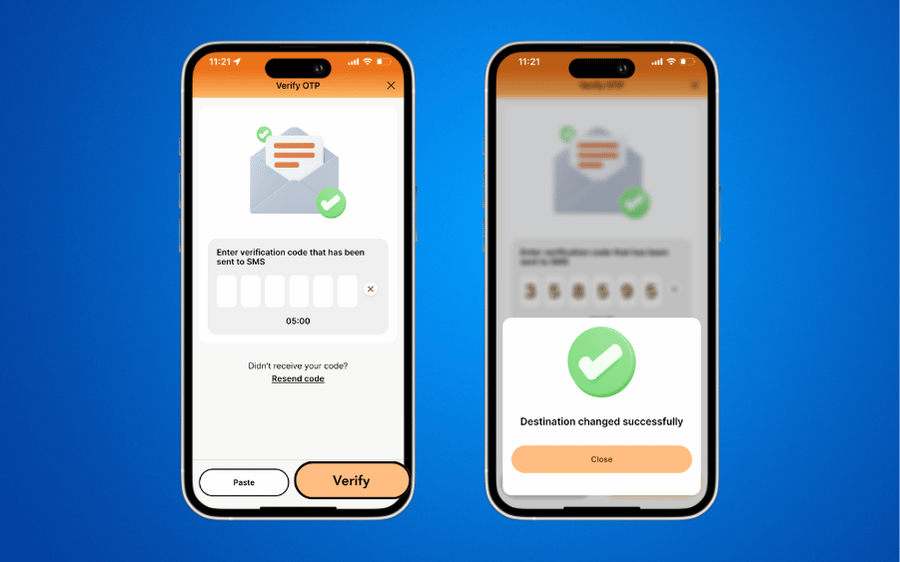
STEP 2: Conduct OTP Verification and check if the destination has been changed successfully. Then click CLOSE.
IMPORTANT NOTICE:
👉🏻 This account is designated solely for depositing funds into your DCOM account. Sharing, disclosing, or using the virtual account for any unauthorized purpose is a violation of the terms of service. DCOM reserves the right to suspend or restrict your access if any suspicious activity is detected.
👉🏻 Users should only transfer funds from a bank account under their own name, matching the registered information with DCOM. Deposits made from third-party accounts may be rejected. DCOM is not responsible for any loss caused by incorrect transfers or the use of another person’s bank account.
👉🏻 All deposits made via the virtual account will be automatically reflected in your DCOM account once confirmed by the system. Processing time may vary depending on the bank or the time of transaction.