


You can use your personal MUFG Bank Account to transfer to DCOM’s bank account. You can also use the DCOM Deposit Card (GOLD) for a faster funds reflection, click here for details:
- Deposit using DCOM Card at Lawson ATM
- Deposit using DCOM Card at Yucho or JP Post Bank ATM
- Deposit using DCOM Card at Seven Bank ATM
However, if you prefer using your personal bank account for a lower-cost option, just follow the steps below.
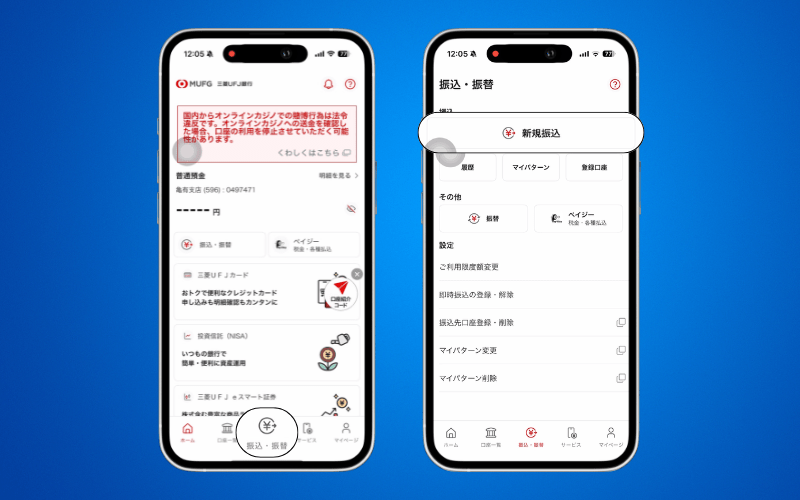
Step 1: Press 振込・振替 then press 新規振込.
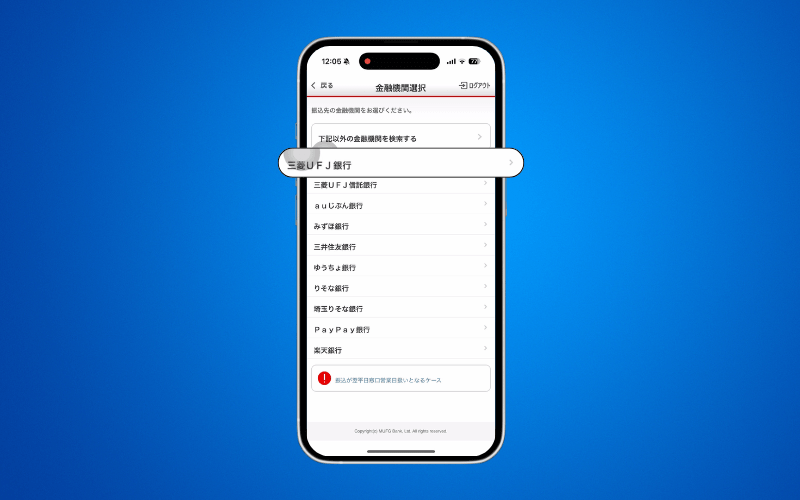
Step 2: Press 三菱UFJ銀行
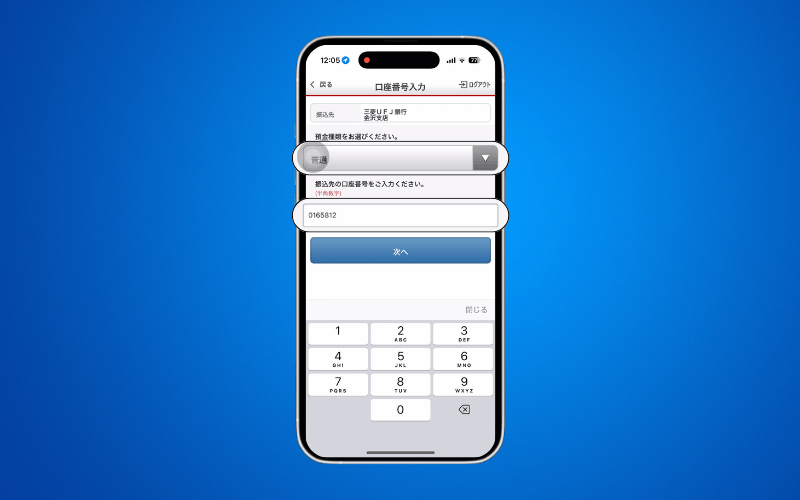
Step 3: Select 普通 and type the DCOM Account number 0165812.
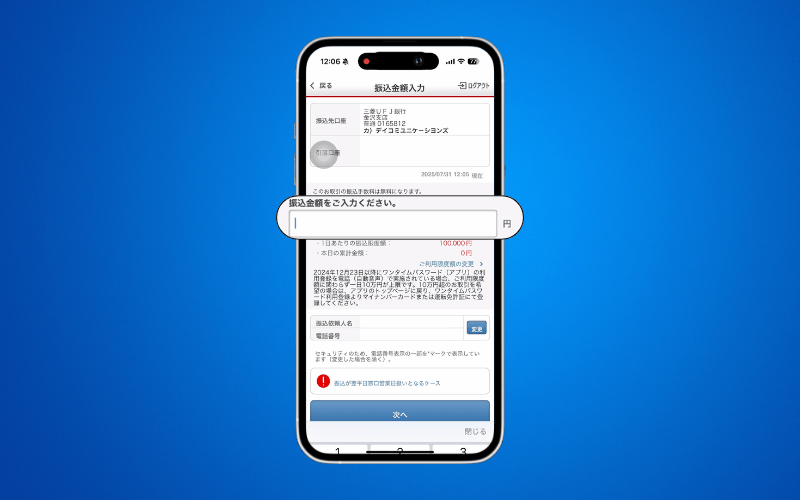
Step 4: Enter the AMOUNT you want to transfer and click 次へ.
Step 5: Confirm all information and click 振込実行 and then press OK.
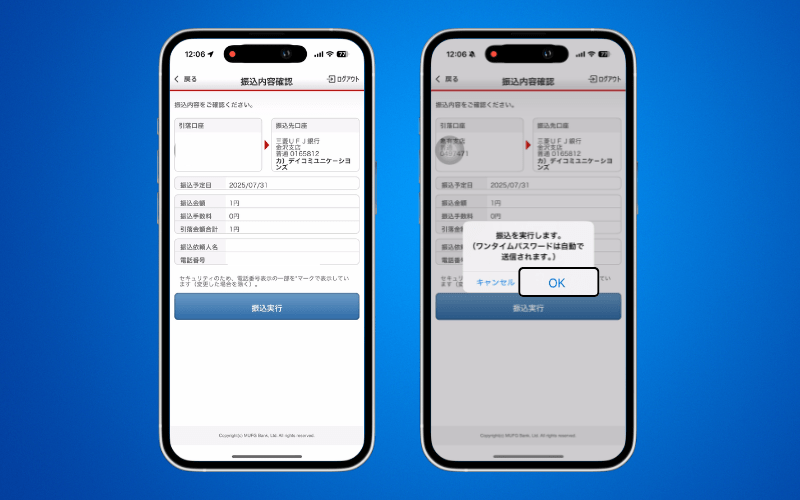
Step 6: Transfer successful! Take a screenshot of this page.
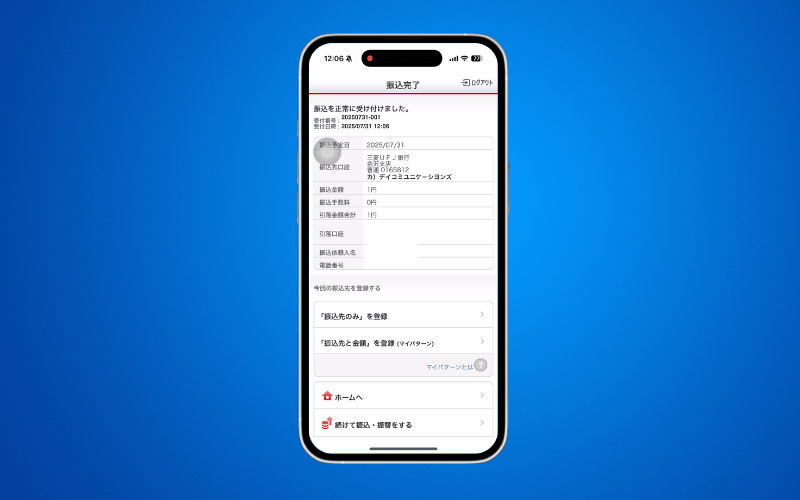
Deposits will not be automatically uploaded to your DCOM Account. You must upload the receipt and report the transfer you made via DCOM App.
Also, you can only use YOUR OWN BANK ACCOUNT. Transfers from other people’s bank account cannot be credited to your DCOM Account.
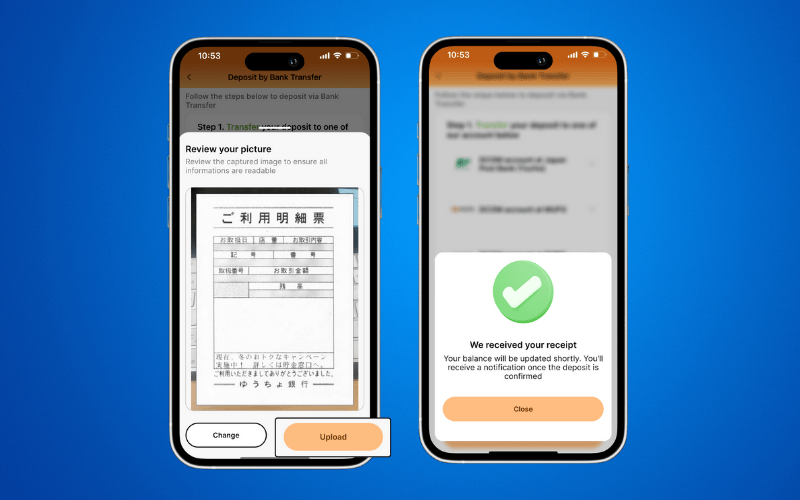
HOW TO UPLOAD RECEIPT VIA DCOM APP?
Step 1: From the homepage, click RECEIPT.
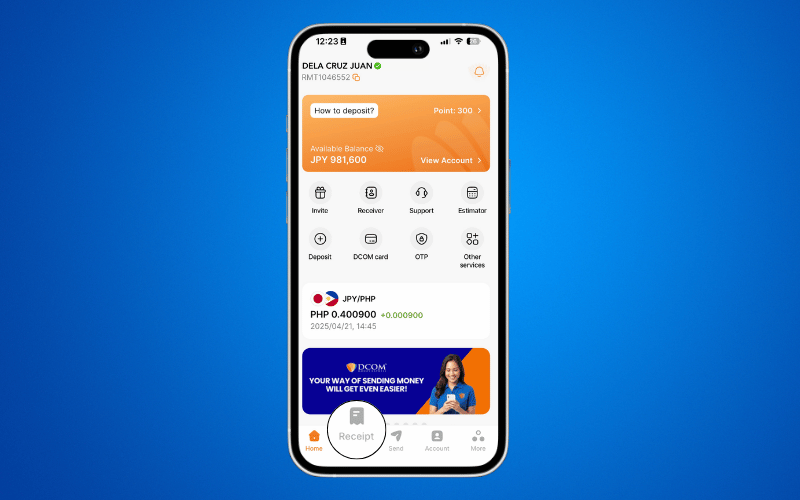
Step 2: Press UPLOAD RECEIPT.
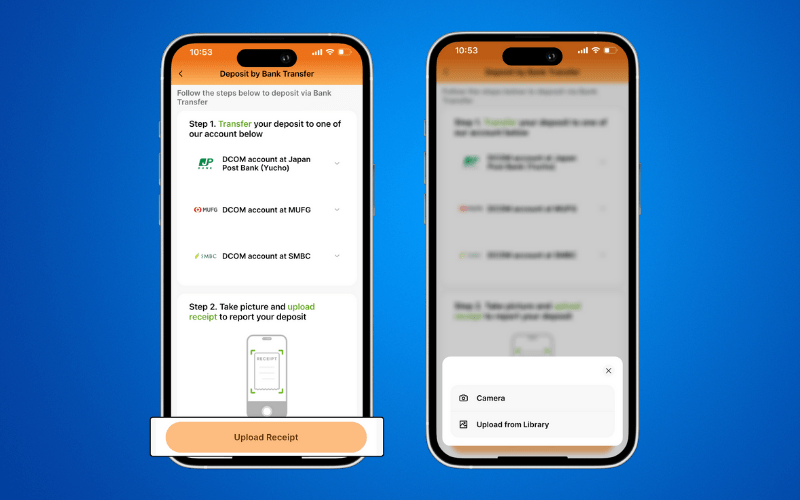
Step 3: Check your uploaded image and press UPLOAD.
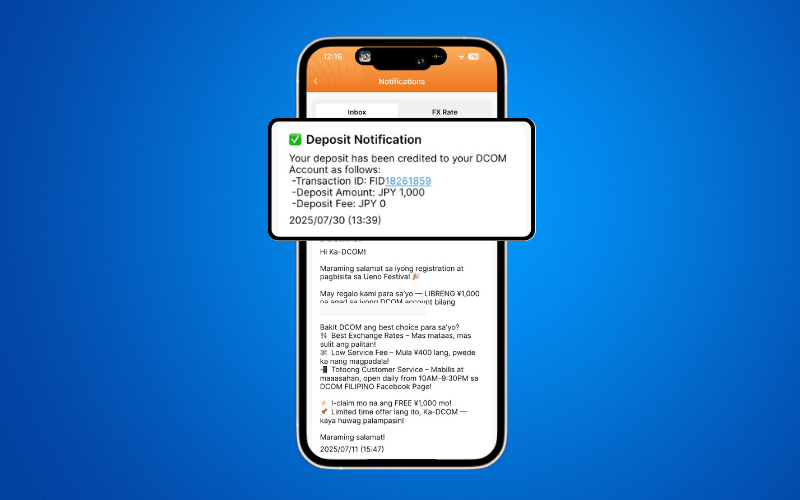
After your deposit is credited, you can wait for a higher exchange rate to maximize your remittance, Send money to your receiver by creating a transaction request, or Withdraw your balance anytime using your DCOM Card!