


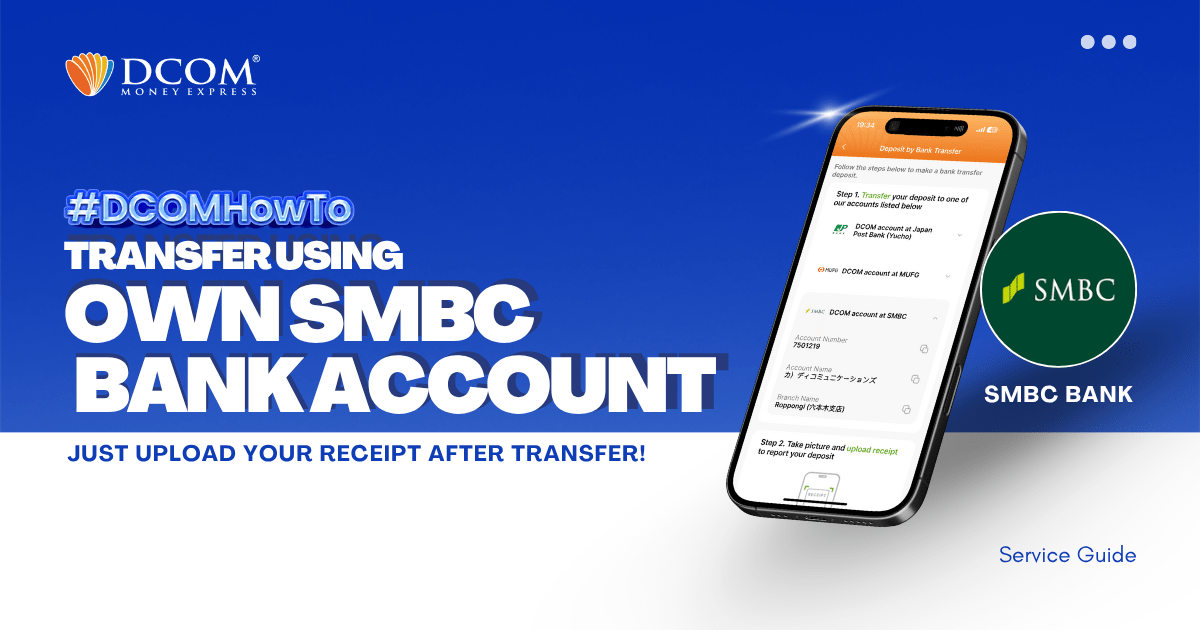
You can use your personal SMBC Bank Account to transfer to DCOM’s bank account. You can also use the DCOM Deposit Card (GOLD) for a faster funds reflection, click here for details:
However, some still prefer using their own personal bank account since this is a much cheaper option, and here’s how:
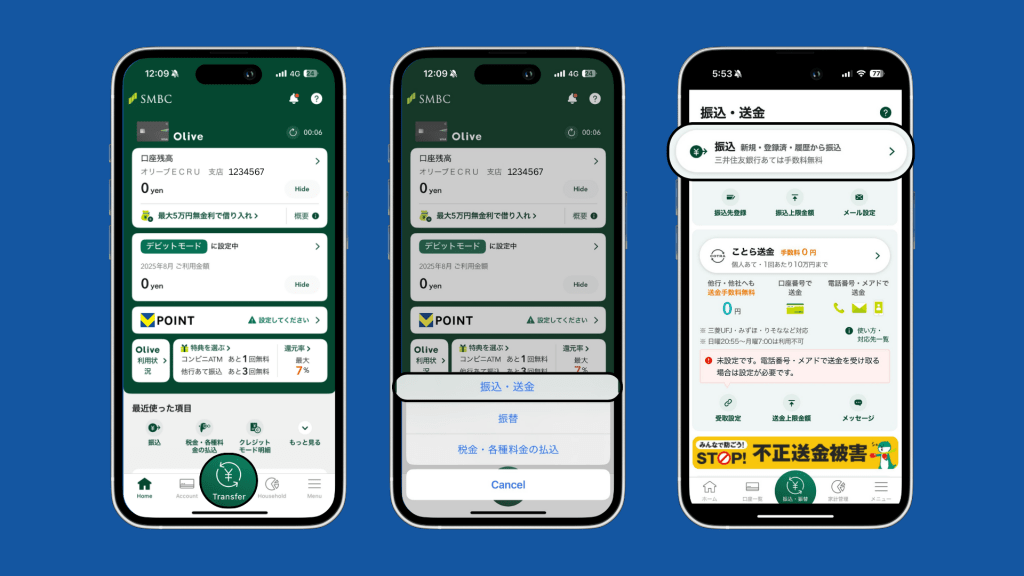
STEP 1: Click TRANSFER then select 振込・返金. Click the top-most part 振込.
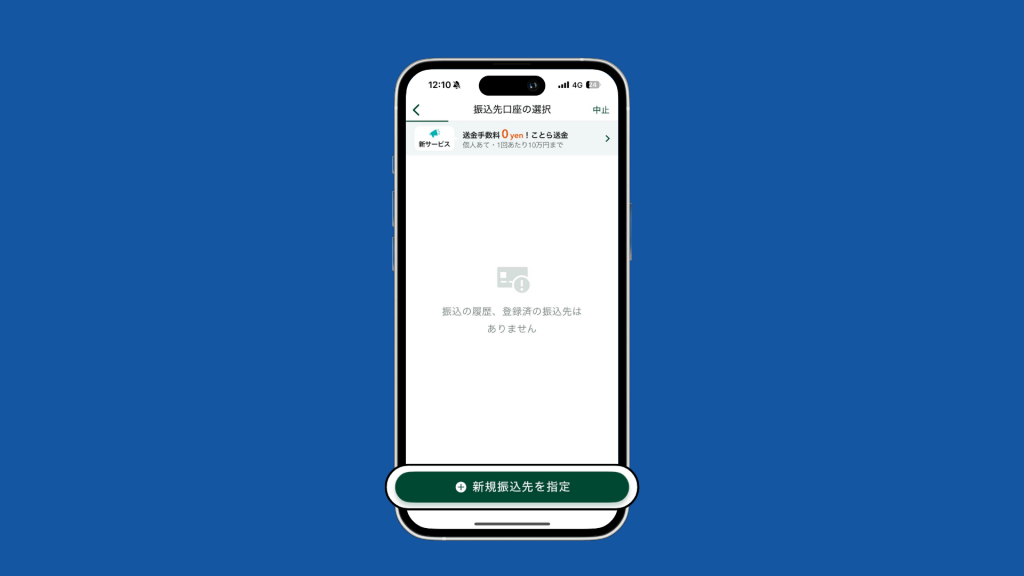
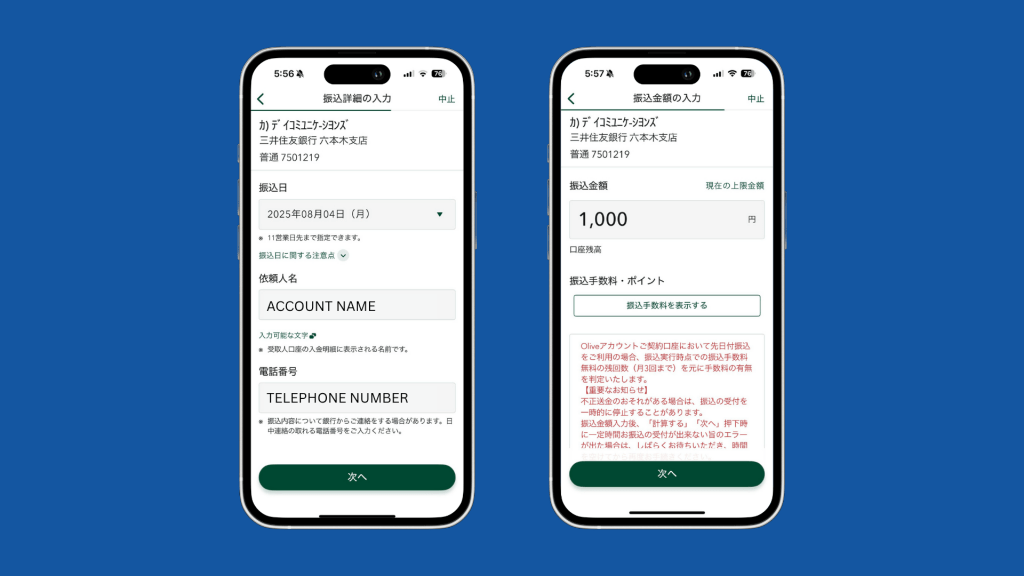
STEP 2: Press + 新規振込先を指定.
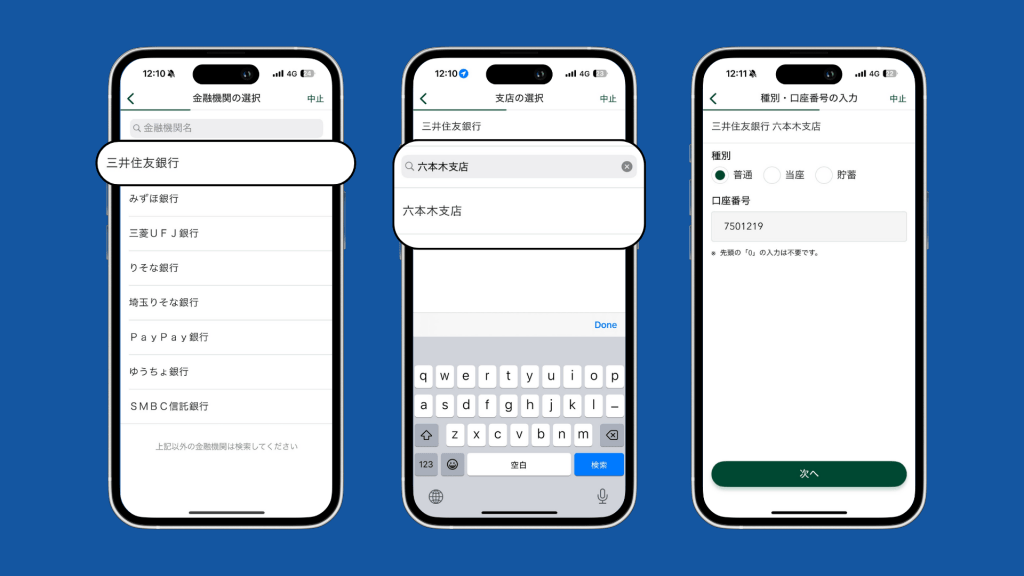
STEP 3: Select 三井住友銀行, then look for 六本木支店. Select 普通 and type-in the DCOM Account number 7501219.
STEP 4: Enter the AMOUNT you want to transfer and click 次へ. Confirm all information and click 次へ again.
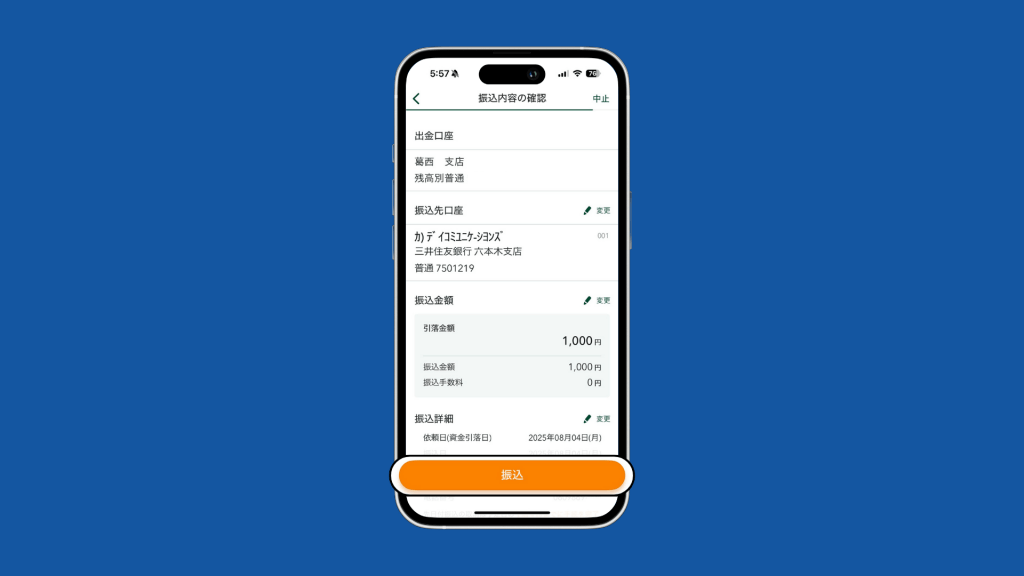
STEP 5: Confirm all information and click 振込.
STEP 6: Transfer successful! Press 振込明細 to check the transfer details. Take a screenshot of the last page.
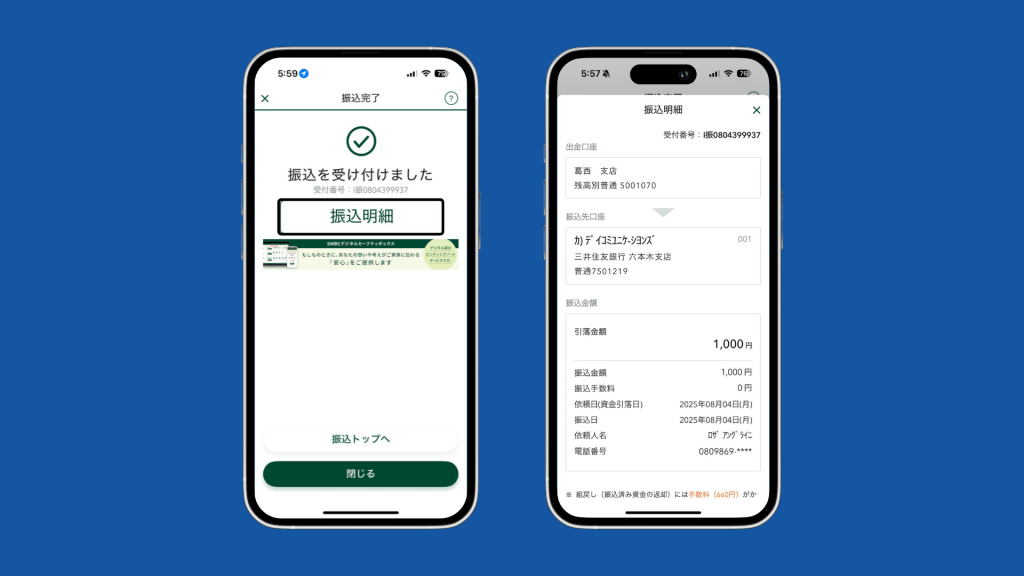
Don’t forget to take a screenshot of the successful transfer.
Deposits will not be automatically uploaded to your DCOM Account. You must upload the receipt and report the transfer you made via DCOM App.
Also, you can only use YOUR OWN BANK ACCOUNT. Transfers from other people’s bank account cannot be credited to your DCOM Account.
HOW TO UPLOAD RECEIPT VIA DCOM APP?
STEP 1: From the homepage, click RECEIPT.
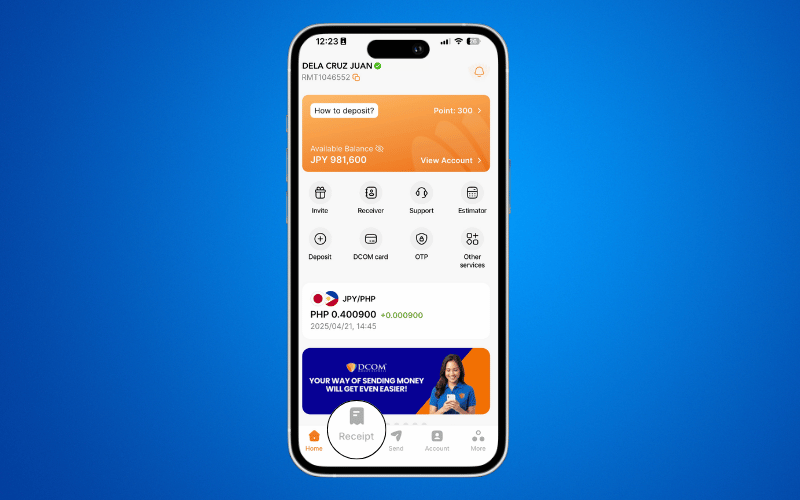
STEP 2: Press UPLOAD RECEIPT.
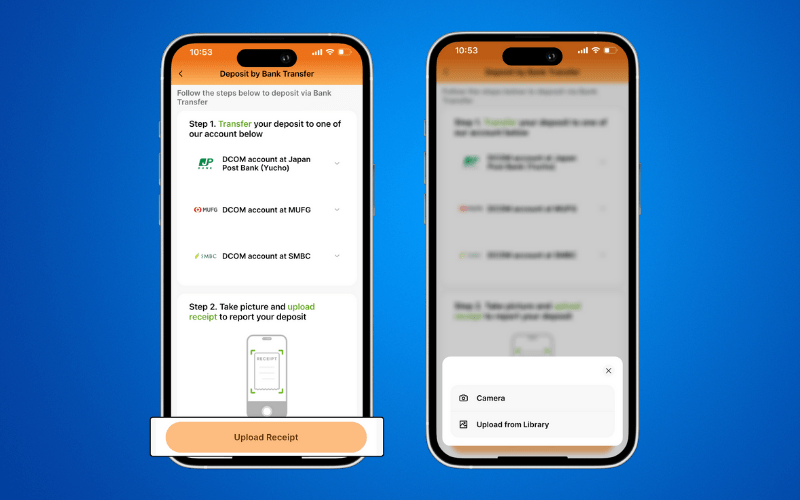
STEP 3: Check your uploaded image and press UPLOAD.
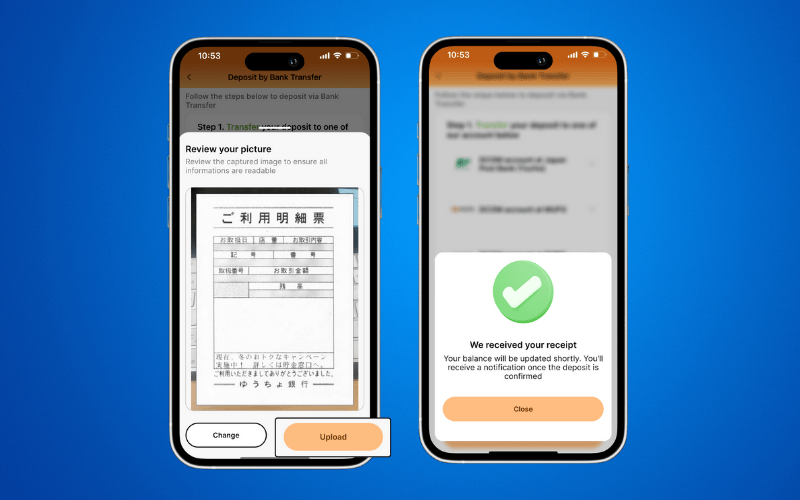
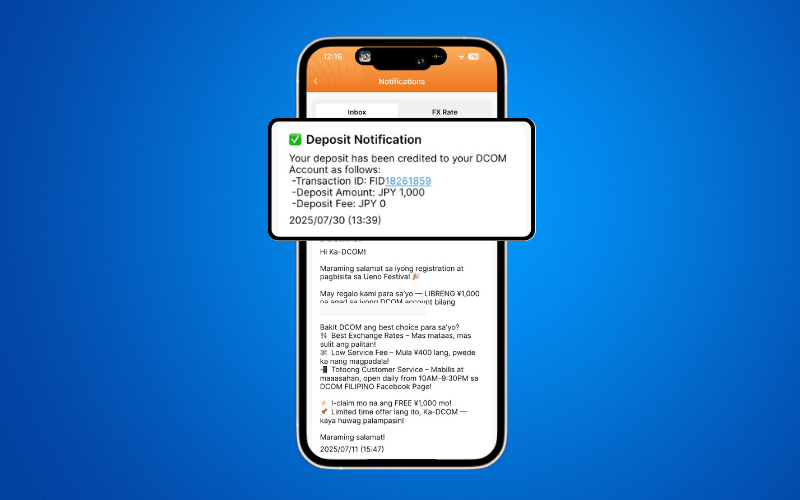
Transfers usually takes time to reflect, however, you will receive a notification once funds have been credited.
After you deposit, you can either wait for the exchange rates to go high or make a transaction request to send it to your receiver. You also have the option to withdraw your balance using the DCOM Card!