


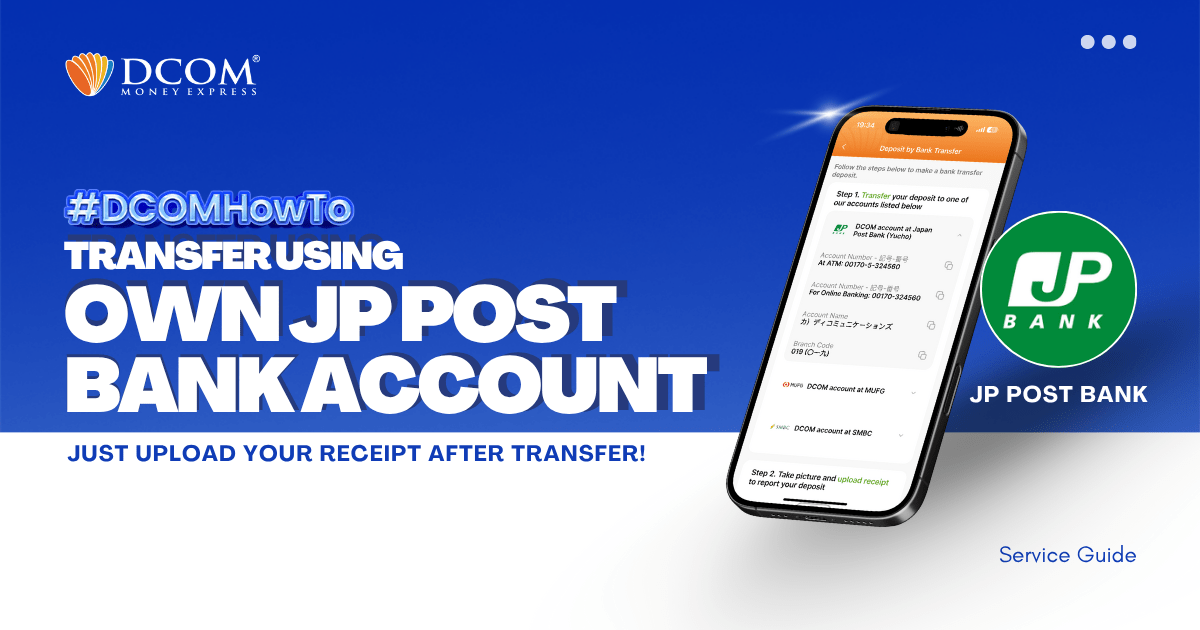
You can use your personal Online JP Post Bank Account (Yuucho Direct) to transfer to DCOM’s bank account. You can also use the DCOM Deposit Card (GOLD) for a faster funds reflection, click here for details:
- Deposit using DCOM Card at Lawson ATMs
- Deposit using DCOM Card at Yucho or JP Post Bank ATMs
- Deposit using DCOM Card at Seven Bank ATM
However, some still prefer using their own personal bank account since this is a much cheaper option, and here’s how:
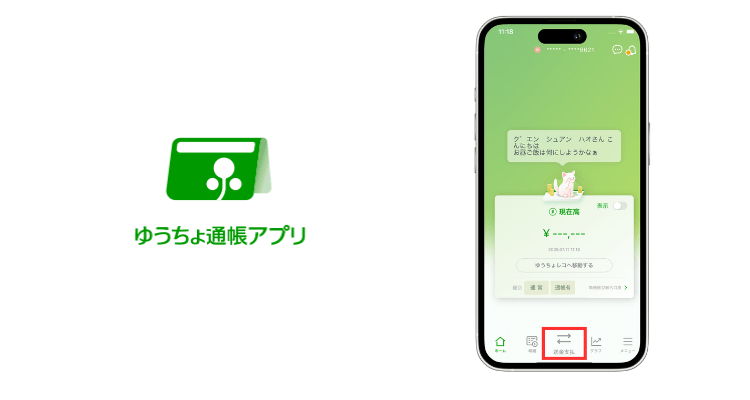
Step 1: Login to ゆうちょ銀行アプリ and press 送金支払
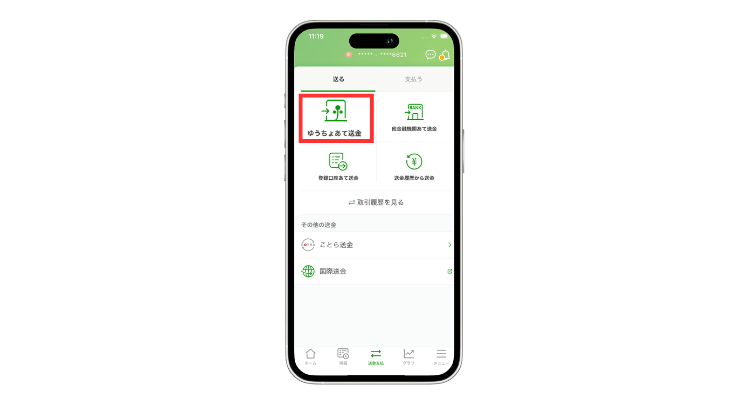
Step 2: Choose ゆうちょあて送金
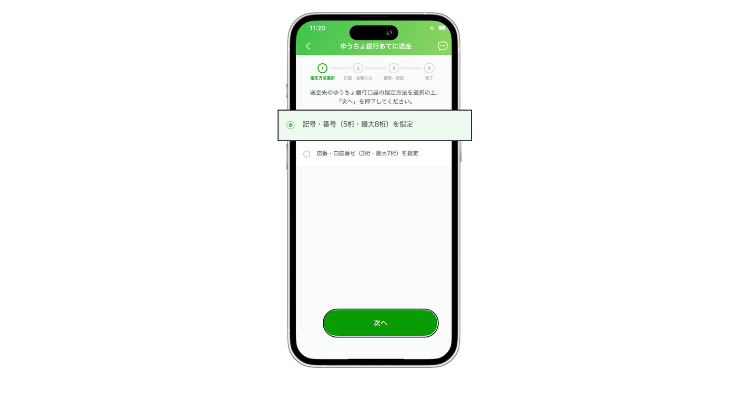
Step 3: You can choose either:
– (1) 記号 ・番号(5桁・最大8桁)を指定
– (2) 店番・口座番号(3桁・最大7桁)を指定
Step 4: Input the following information:
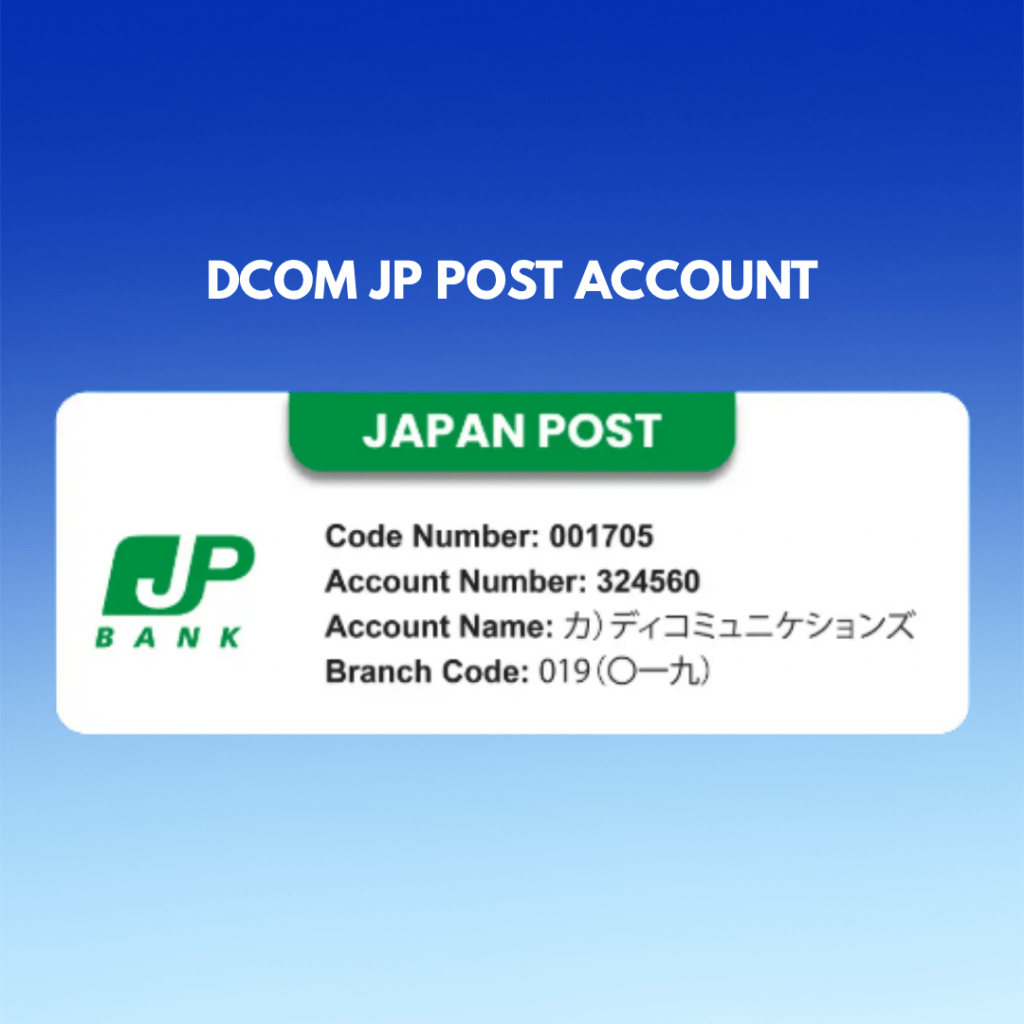
If you chose, 記号 ・番号(5桁・最大8桁)を指定, use the following details:
- For 記号 (Code Number) : 00170
- For 番号 (Account Number) : 324560
If you chose, 店番・口座番号(3桁・最大7桁)を指定, use the following details:
- For 店番 (Branch Code) : Type 〇一九 or ゼロイ (max 3 characters)
- For 口座番号 (Account Number) : 0324560
REMINDER!
Do not change the 依頼人名 or Requester’s Name. Keep it blank!
Just make sure that you use your OWN BANK ACCOUNT.
Step 5: Confirm the details and press アプリを記動
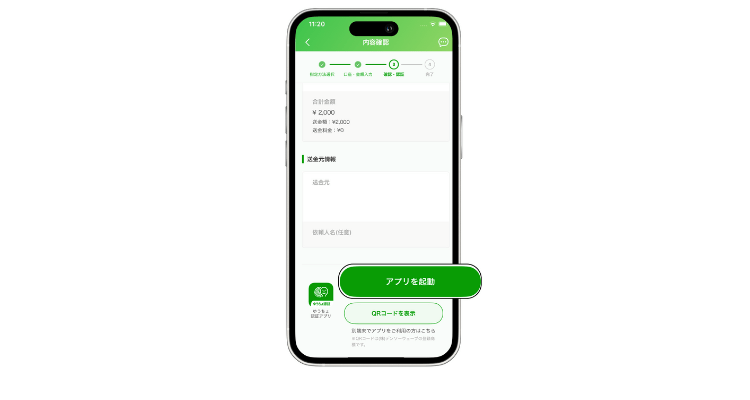
Step 6: Connect to ゆうちょ認証アプリ and press 承知 to continue.
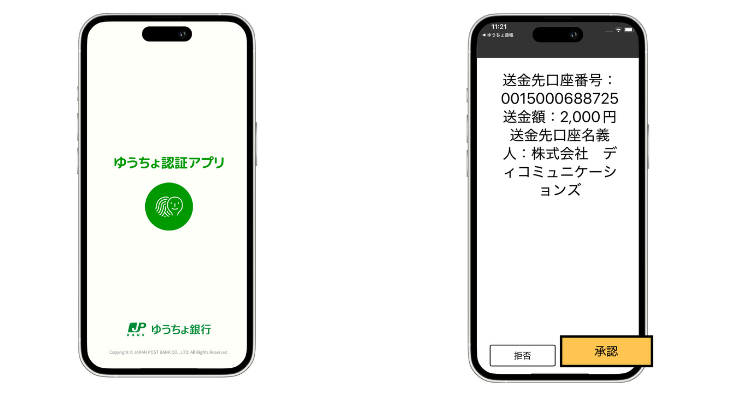
Step 7: Input the OTP and press ゆうちょ承認.
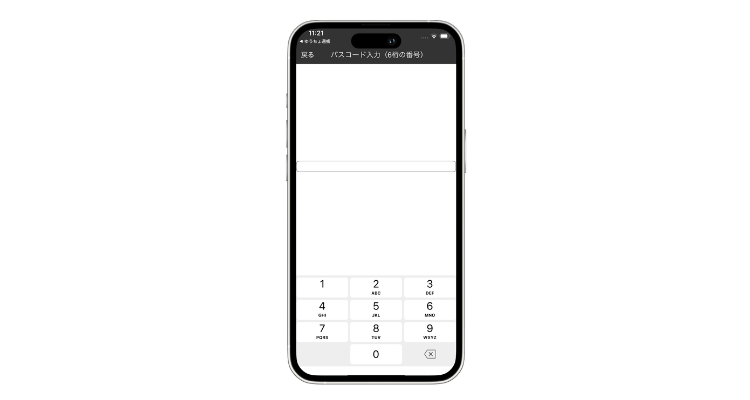
Step 8: Transfer has been made successfully! Take a screenshot of this screen.
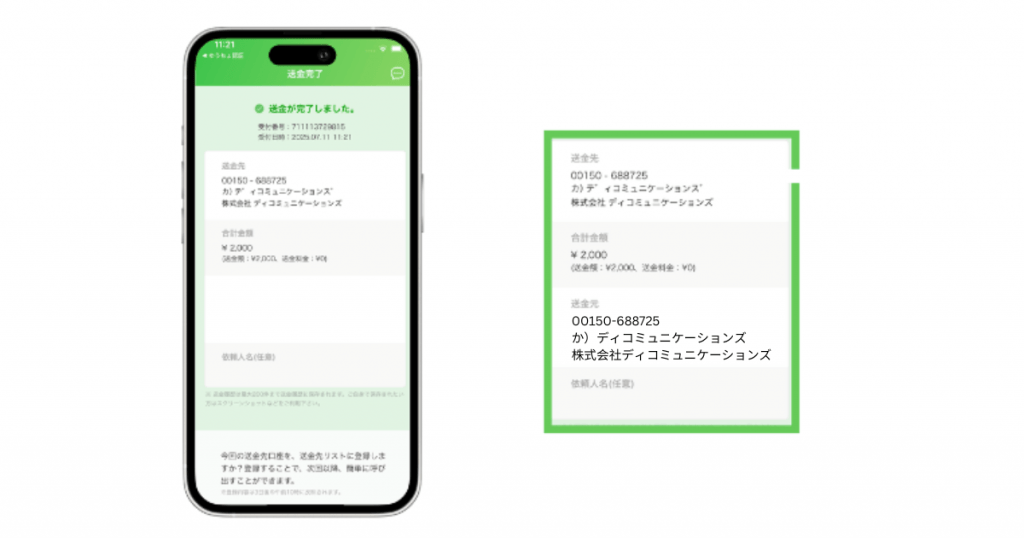
Don’t forget to take a screenshot of the successful transfer.
Deposits will not be automatically uploaded to your DCOM Account. You must upload the receipt and report the transfer you made via DCOM App.
Also, you can only use YOUR OWN BANK ACCOUNT. Transfers from other people’s bank account cannot be credited to your DCOM Account.
HOW TO UPLOAD RECEIPT VIA DCOM APP?
Step 1: From the Home screen, click RECEIPT.
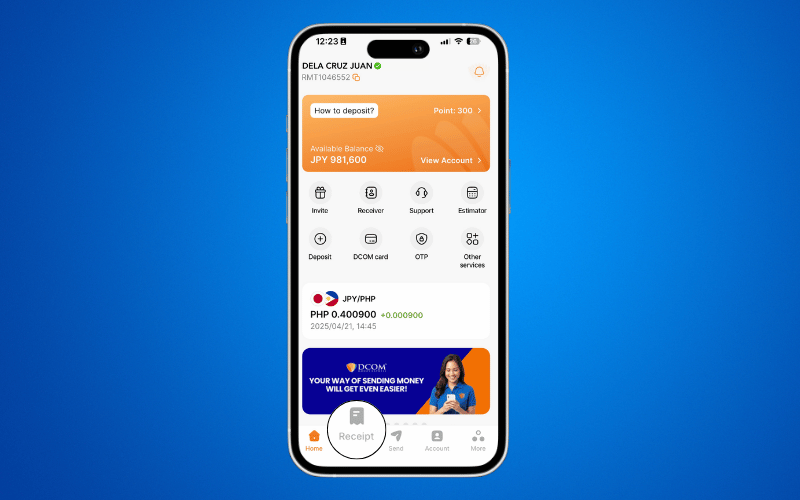
Step 2: Press UPLOAD RECEIPT.
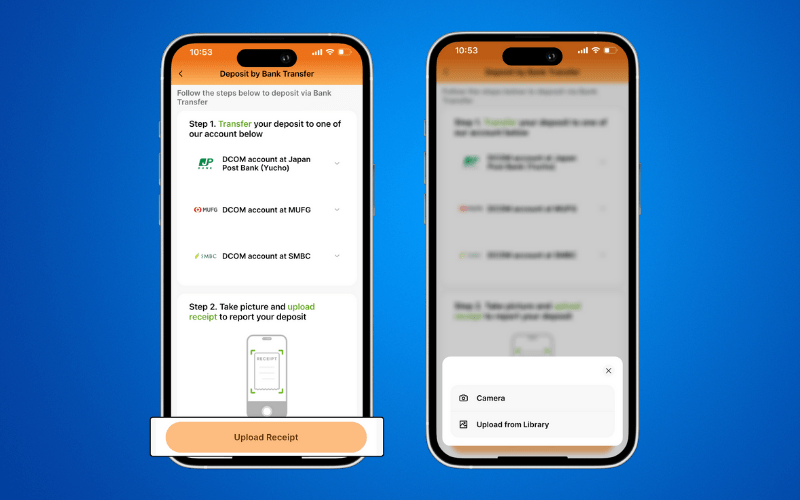
Step 3: Check your uploaded image and press UPLOAD.
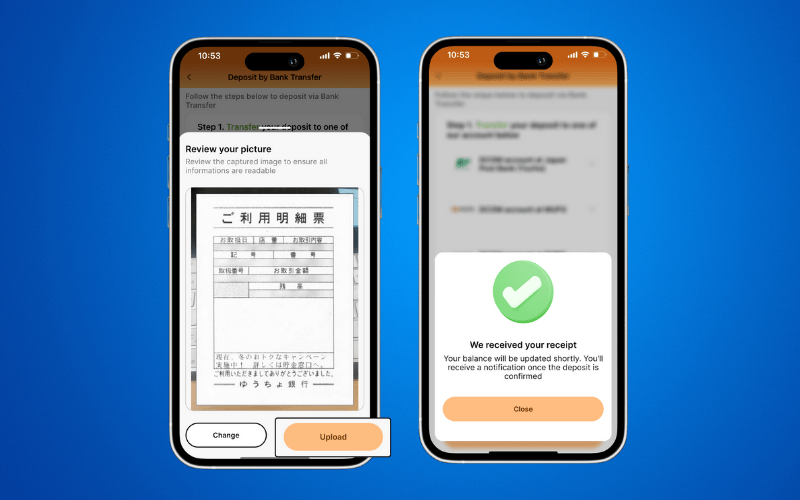
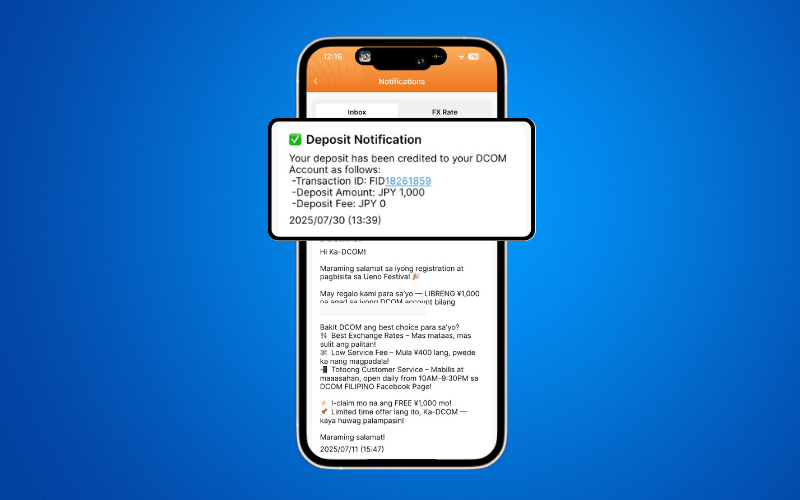
After you deposit, you can either wait for the exchange rates to go high or make a transaction request to send it to your receiver. You also have the option to withdraw your balance using the DCOM Card!