


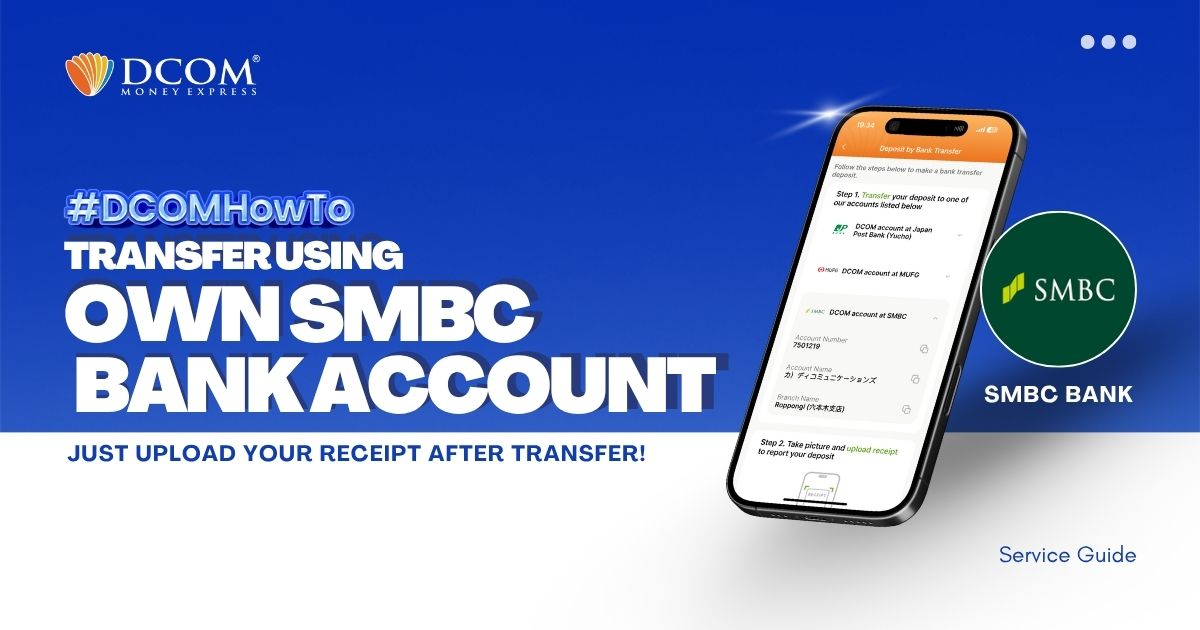
You can use your personal SMBC Bank Account to transfer to DCOM’s bank account. You can also use the DCOM Deposit Card (GOLD) for a faster funds reflection, click here for details:
- Deposit using DCOM Card at Lawson ATMs
- Deposit using DCOM Card at Yucho or JP Post Bank ATMs
- Deposit using DCOM Card at Seven Bank ATM
However, some still prefer using their own personal bank account since this is a much cheaper option, and here’s how:
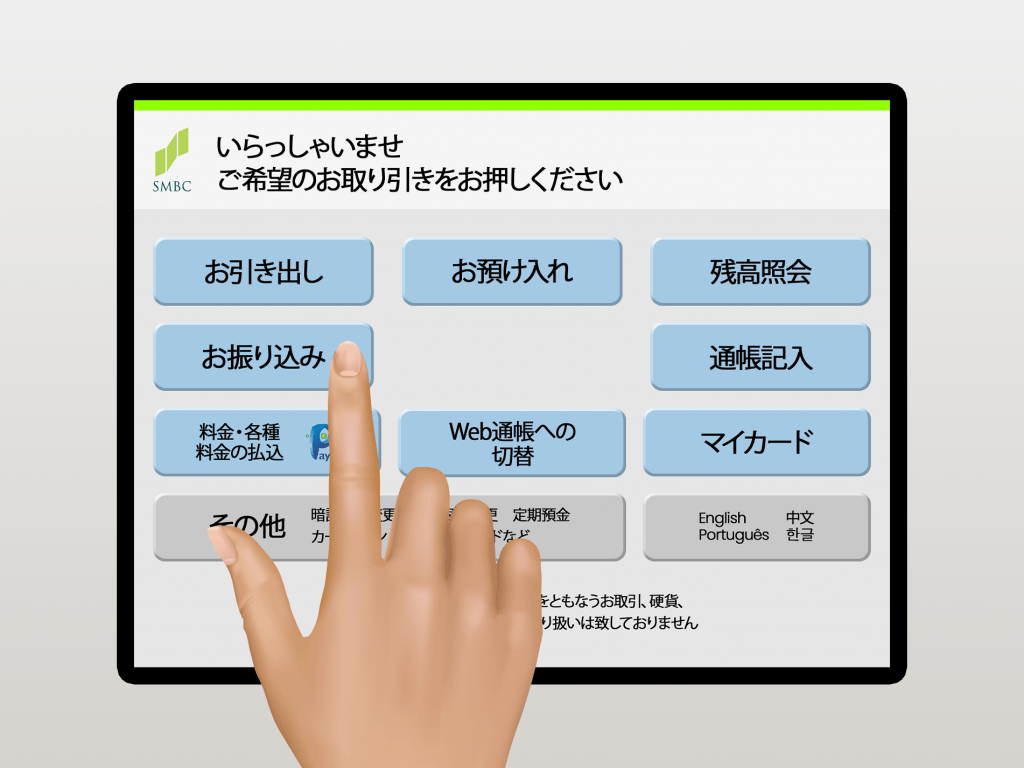
Step 1: Press お振り込み (ofurikomi)
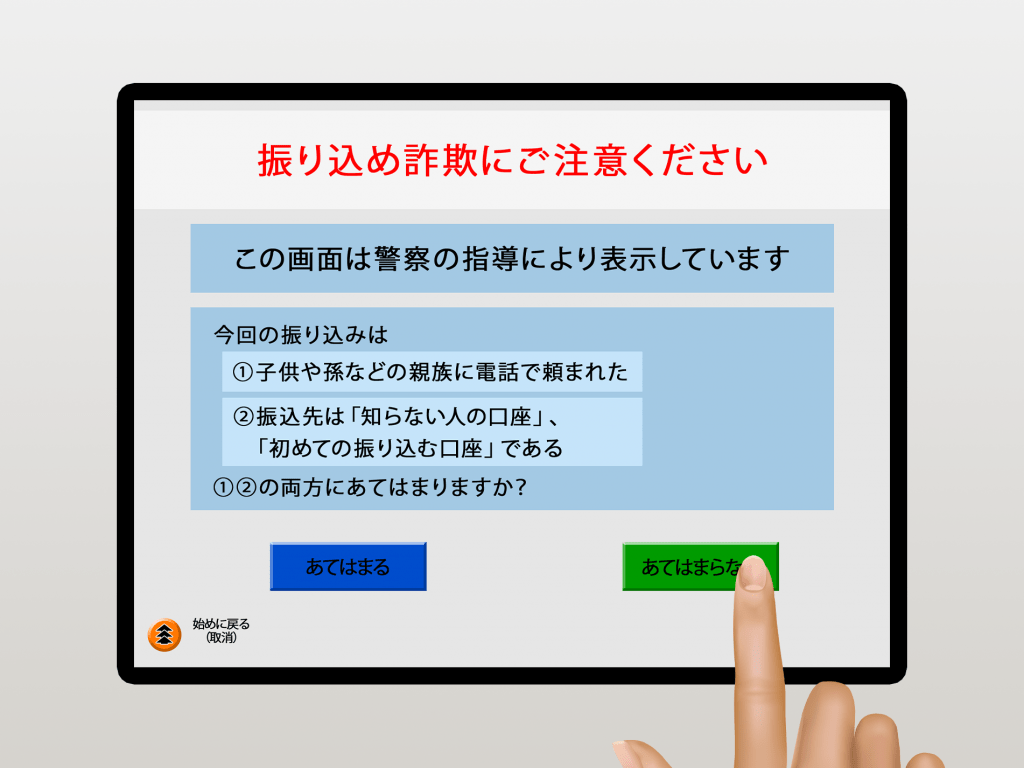
Do not use other people’s bank account.
Step 2: Press あてはまらない
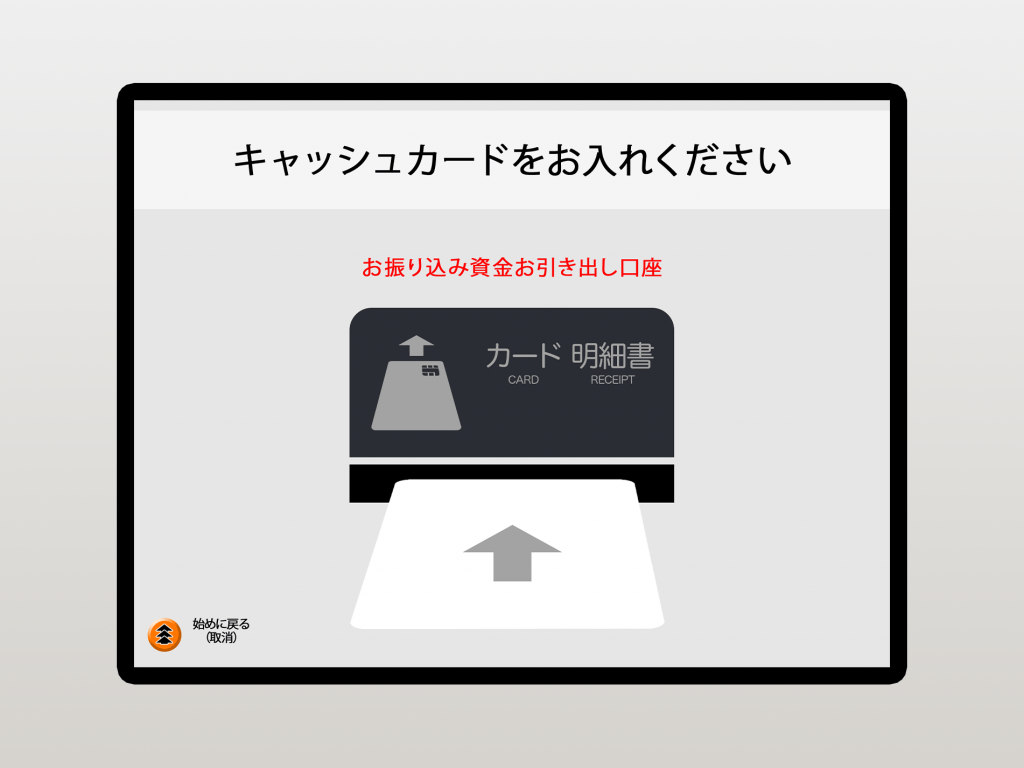
Step 3: Insert your Cash Card
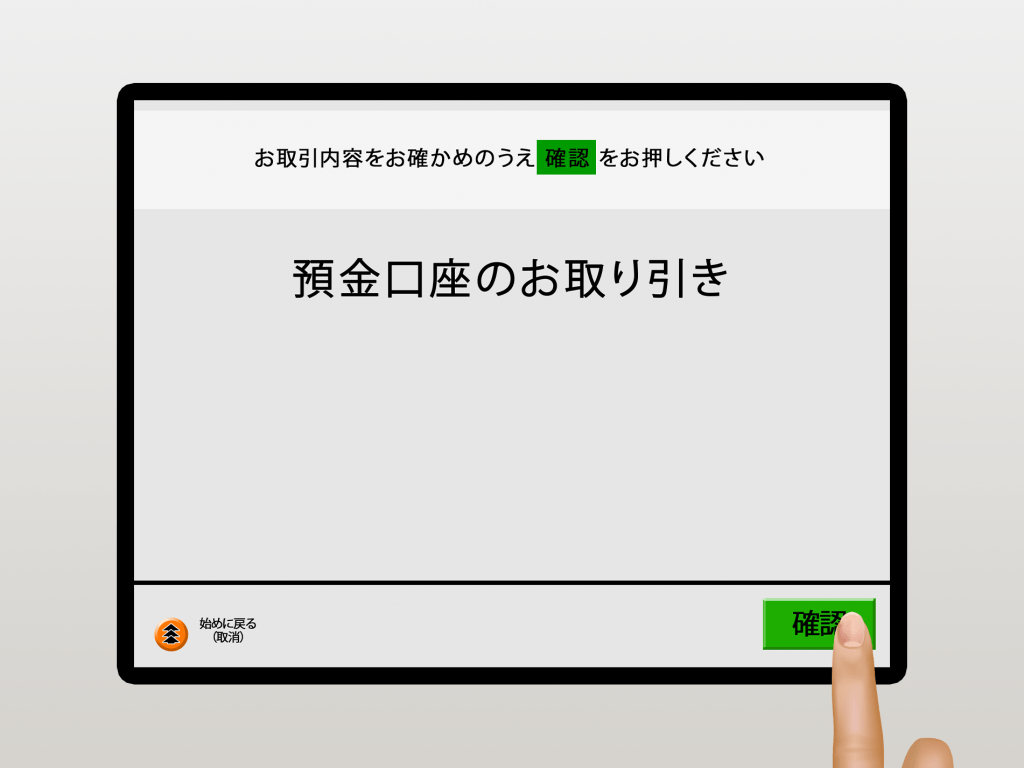
Step 4: Press the 確認 (kakunin)
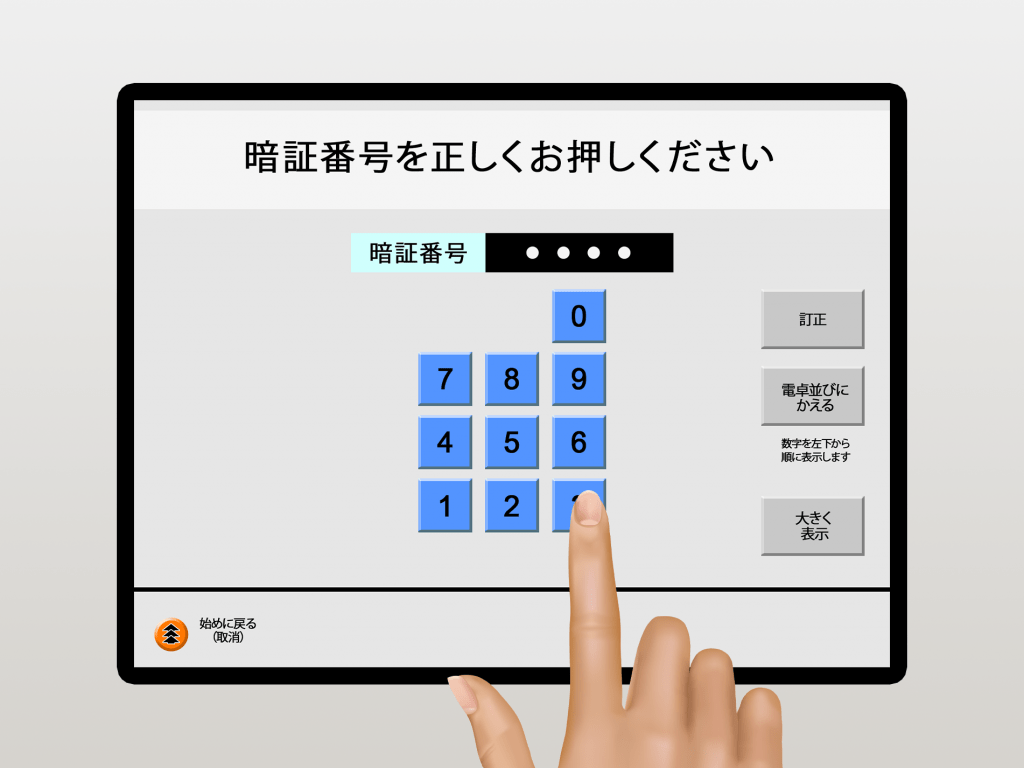
Step 5: Type your PIN NUMBER
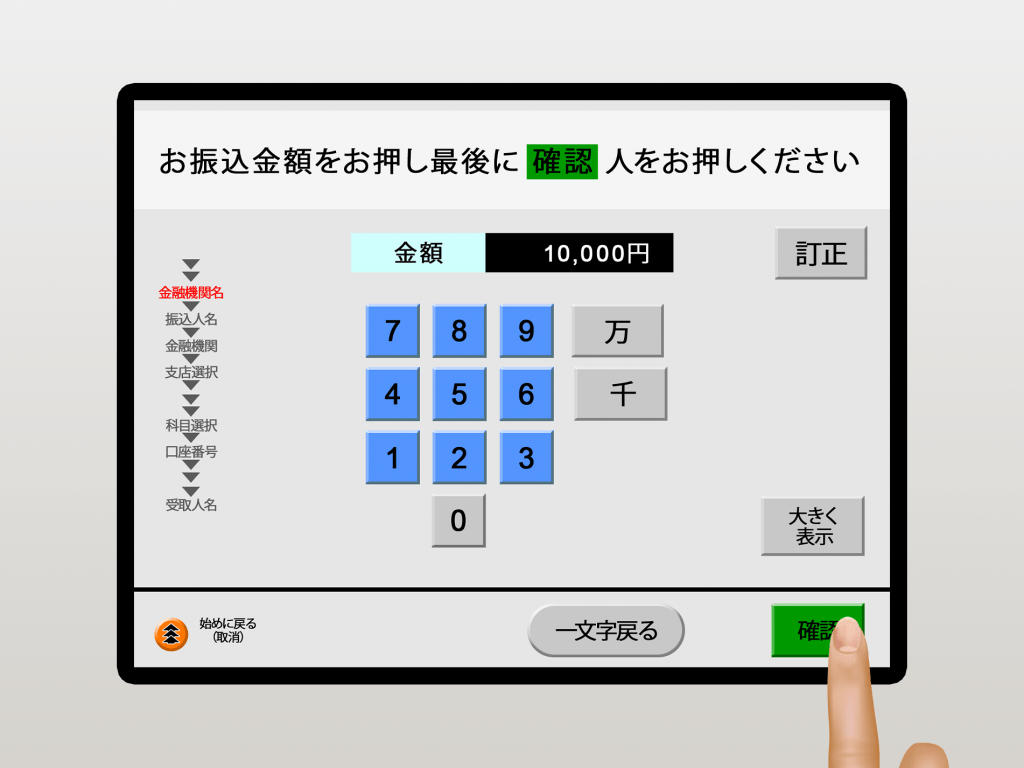
Step 6: Input the amount you wish to send.
Step 7: Click はい (hai)
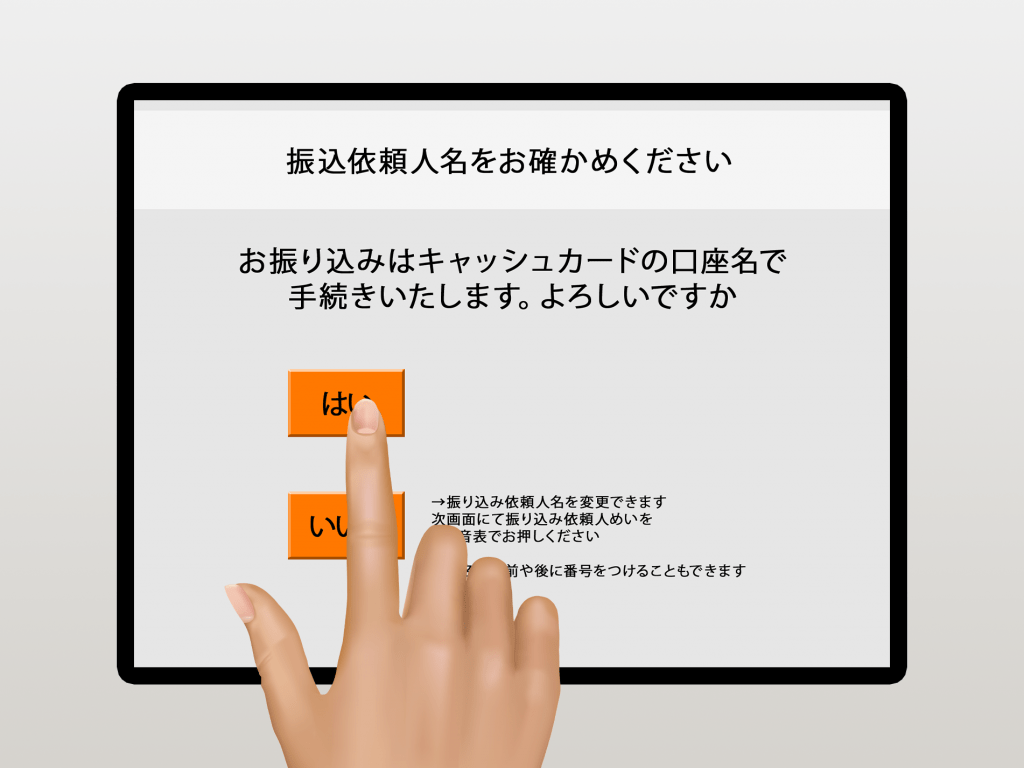
This means the amount will be deducted from your balance
Step 8: Press 三井住友 (mitsui sumitomo)
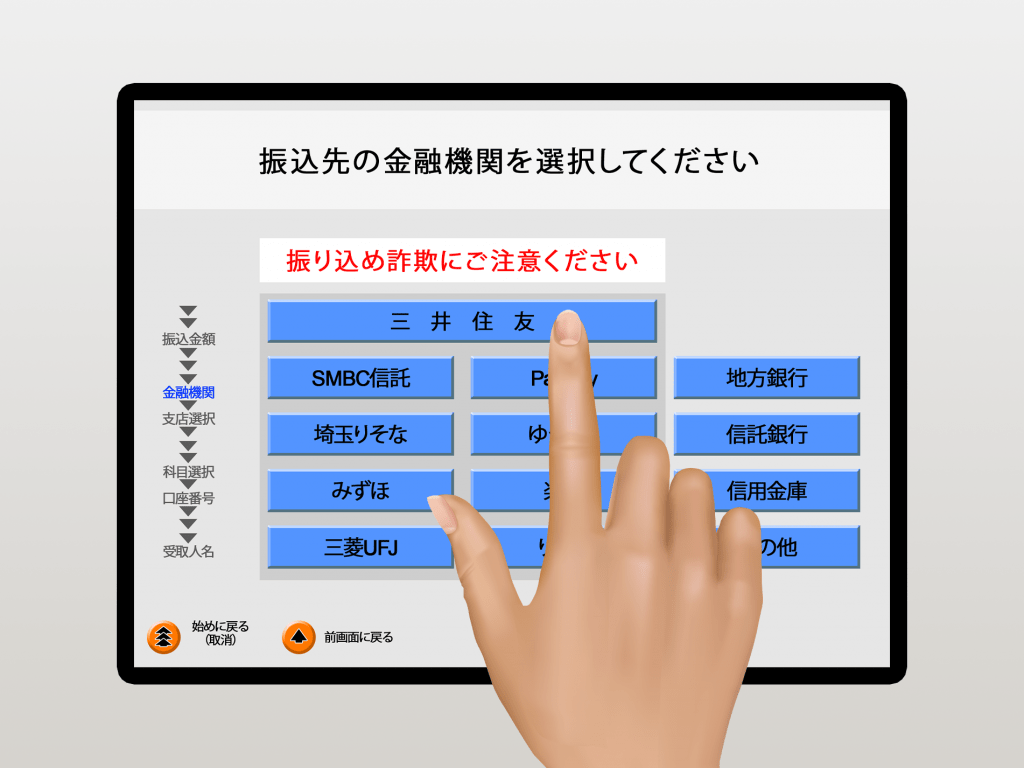
Sumitomo Mitsui Banking Corporation is the full name of SMBC Bank.
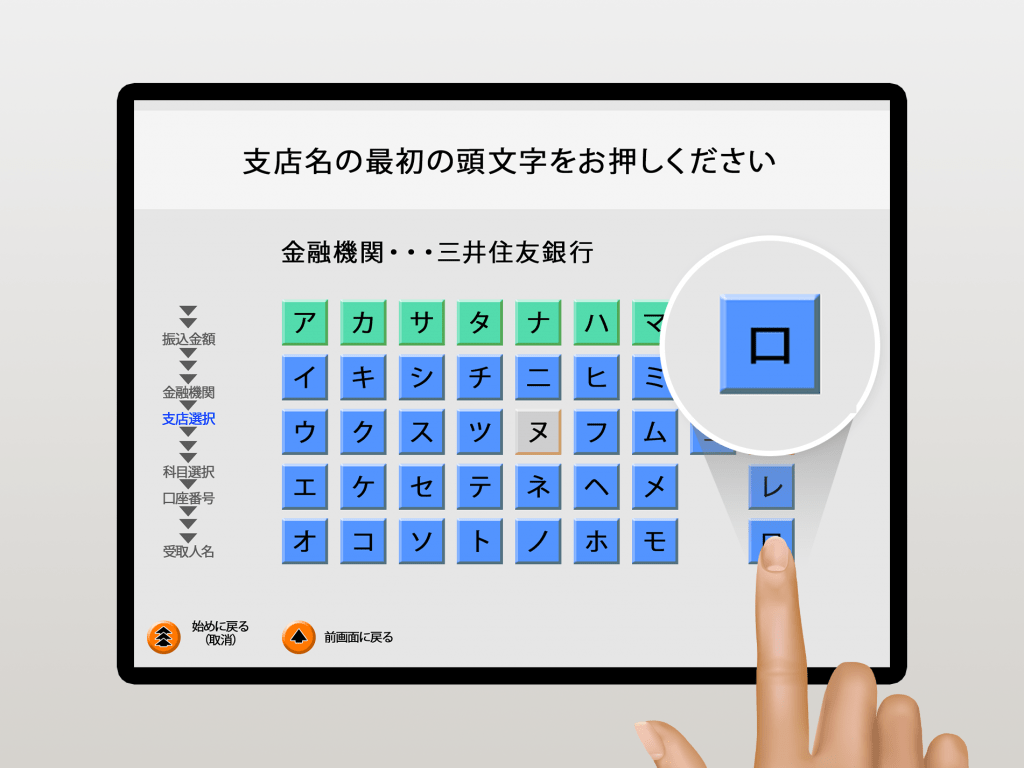
Step 9: Press ロ (ro) to find the bank branch name.
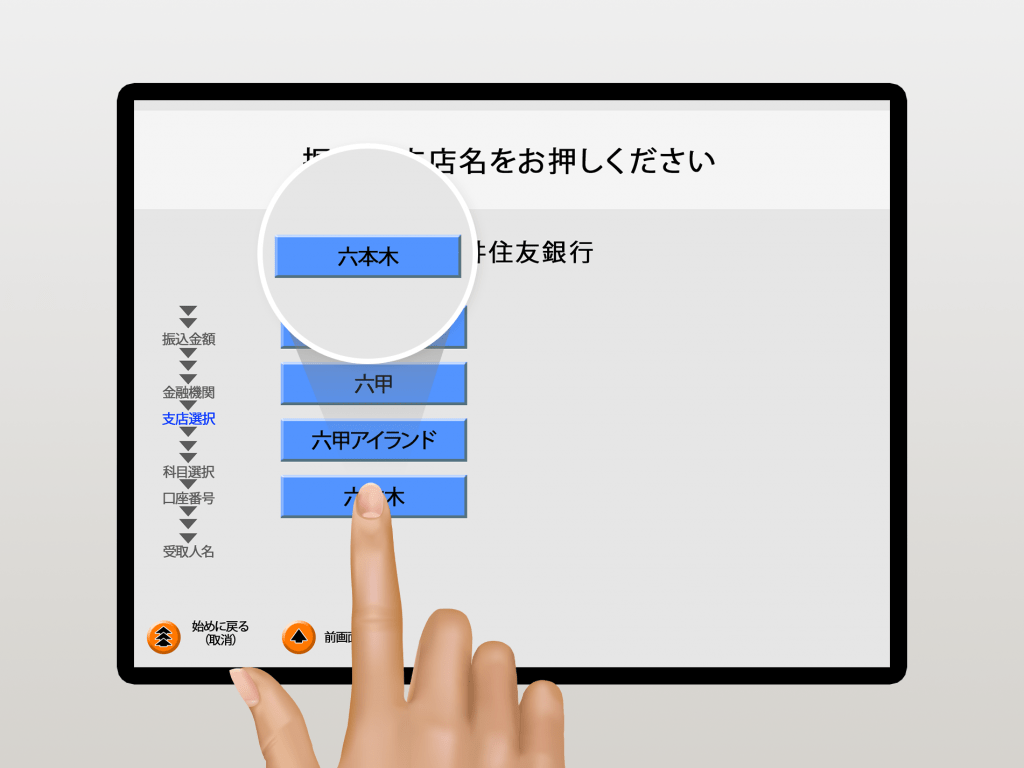
Step 10: Choose 六本木 (roppongi) branch
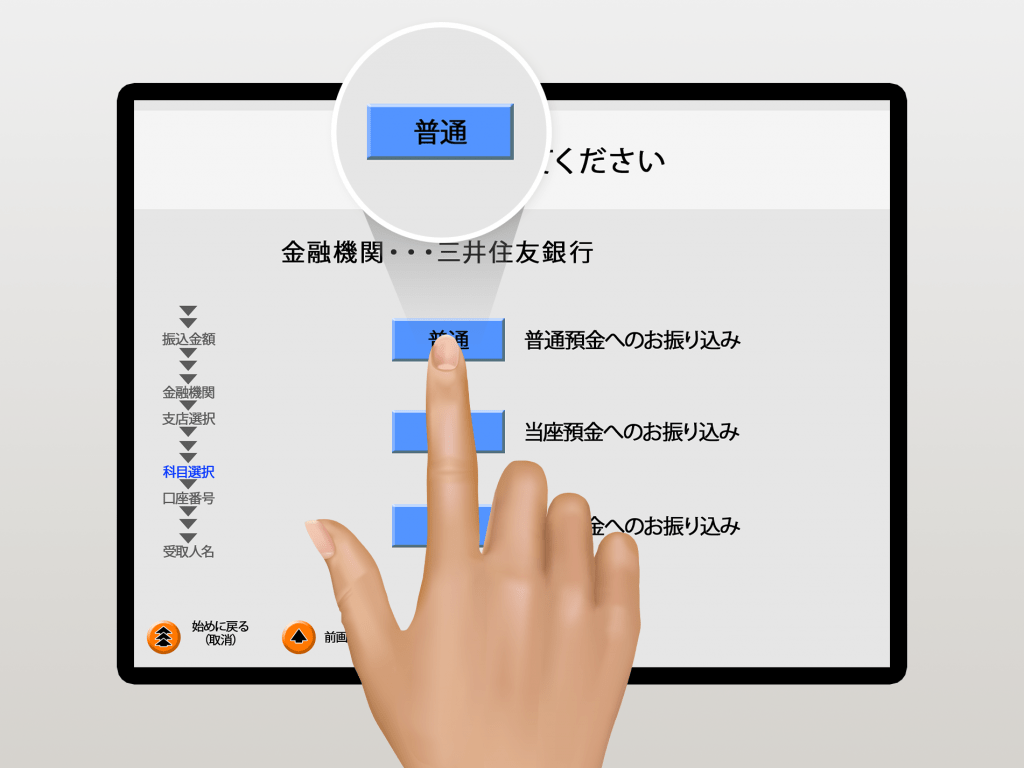
Step 11: Choose 普通 (futsu) as the account type
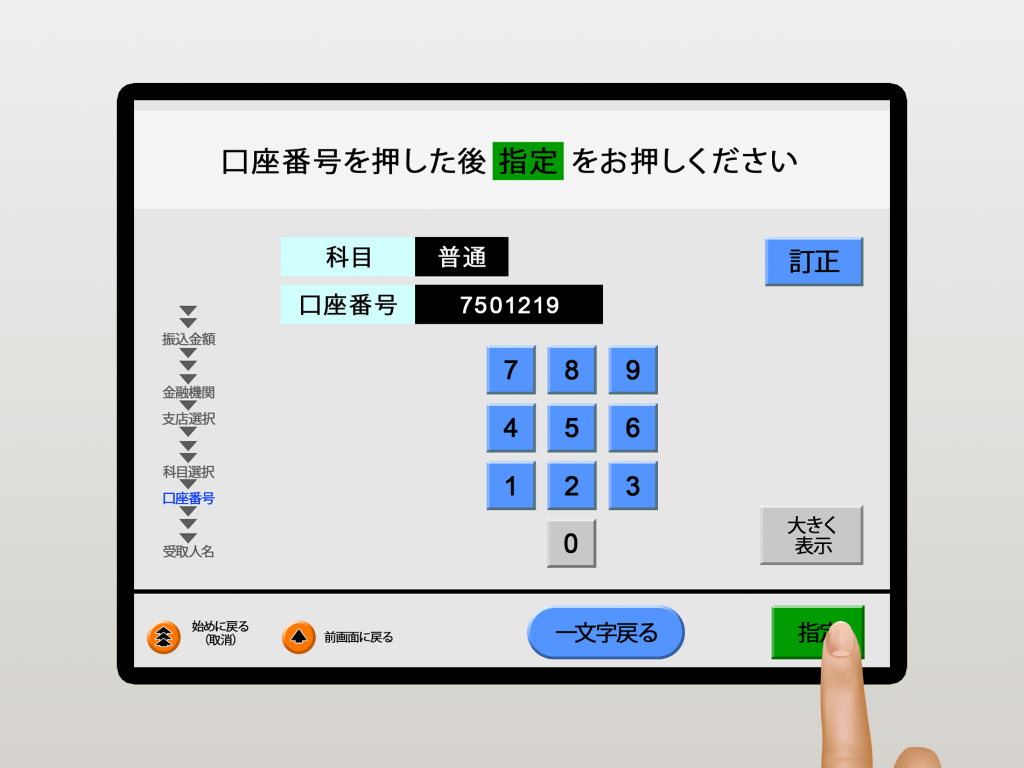
Step 12: Input 7501219 on the 口座番号 (kōzabangō) screen. Press 指定 (shitei)
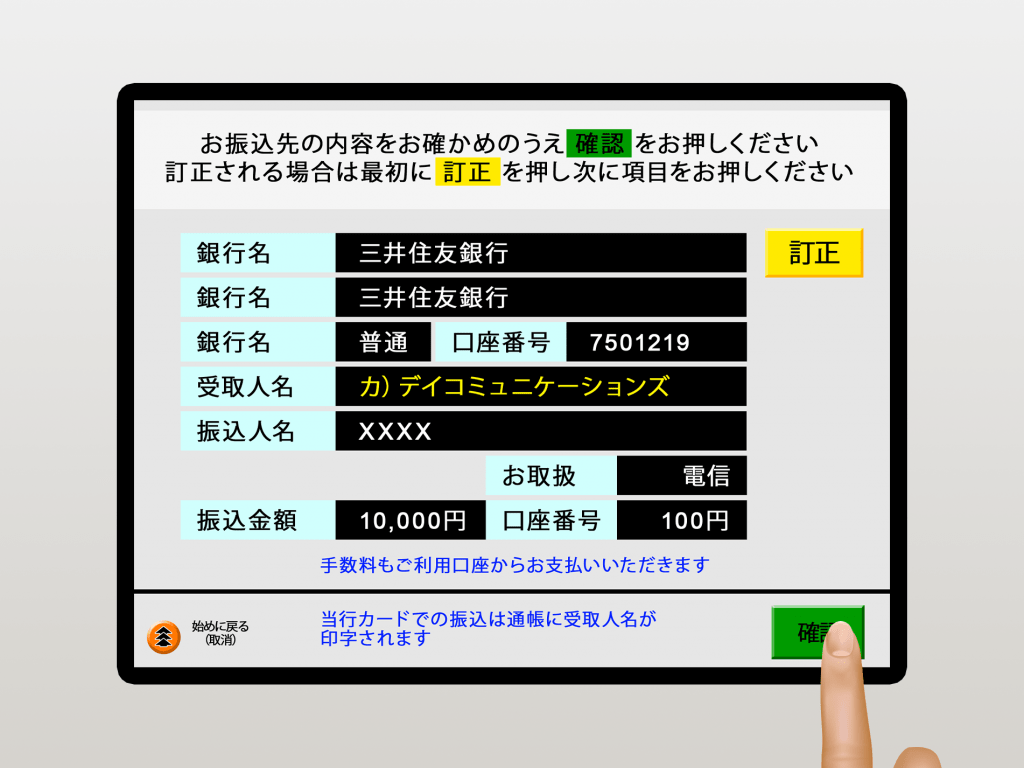
Step 13: Check the details and press 確認 (kakunin)
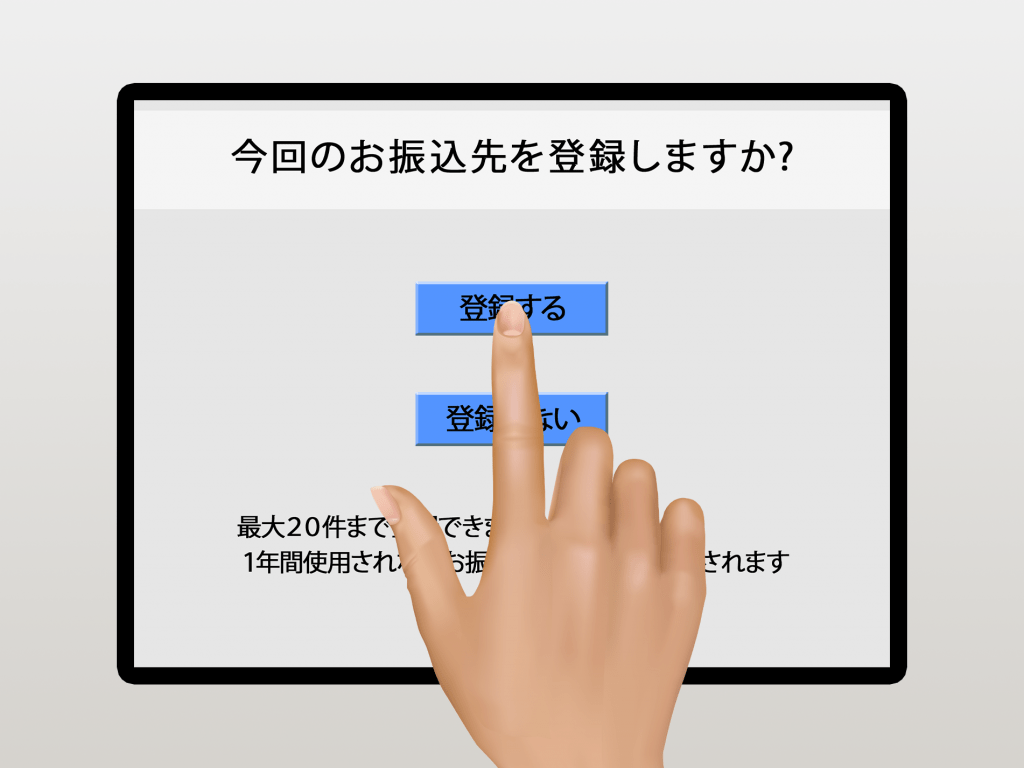
Step 14: Press 登録する to save the payee information.
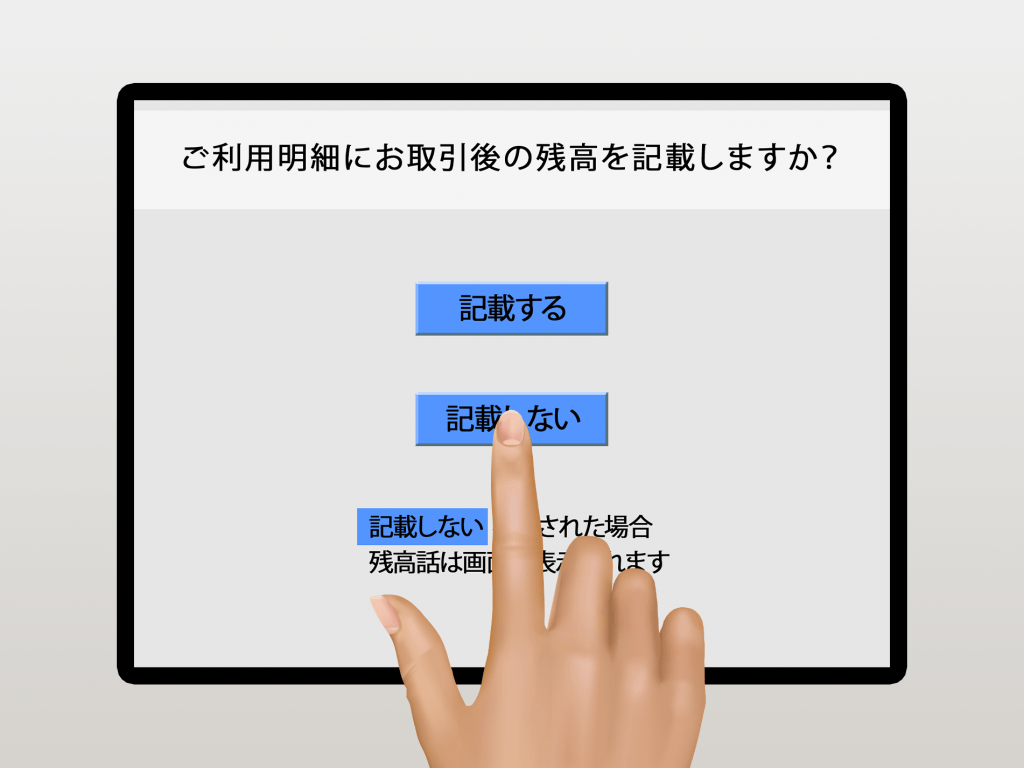
Step 15: Press 記載しない
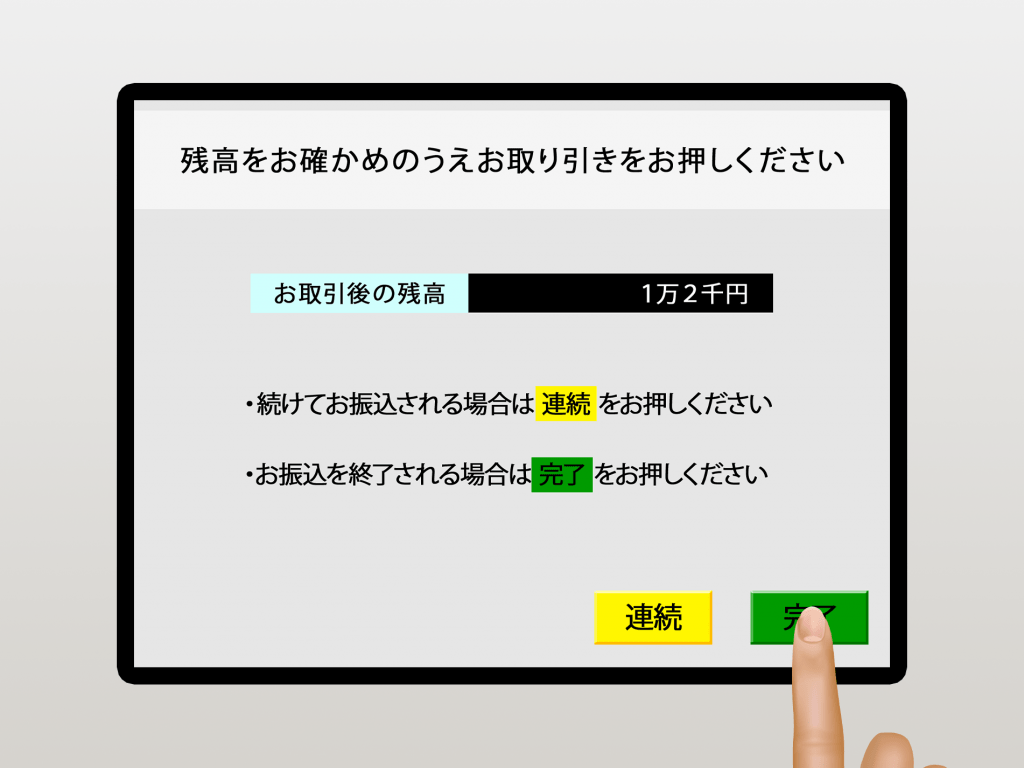
Step 16: Press 完了
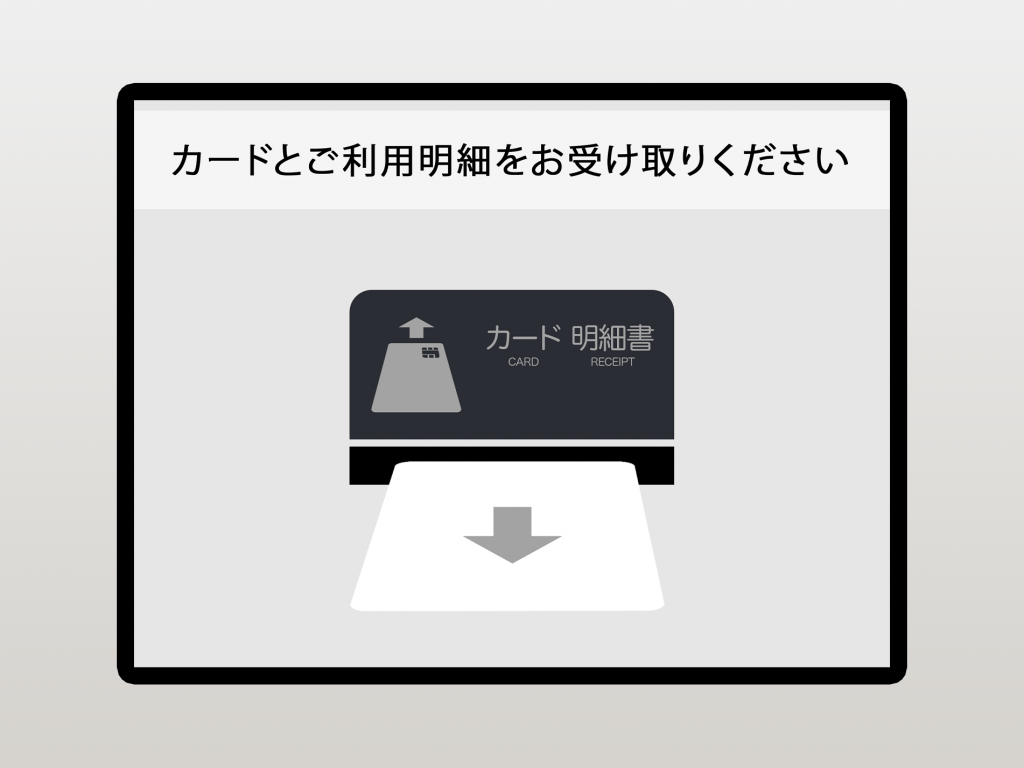
Step 17: Take your MUFG Cash Card and Receipt.
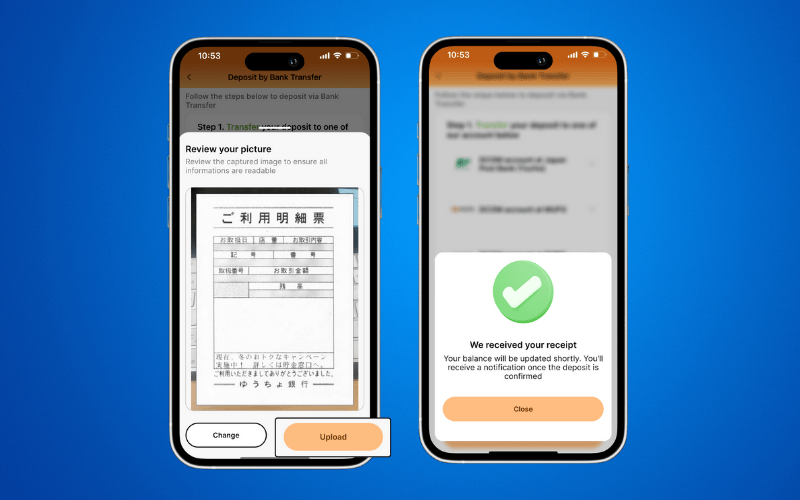
Deposits will not be automatically uploaded to your DCOM Account. You must upload the receipt and report the transfer you made via DCOM App.
Also, you can only use YOUR OWN BANK ACCOUNT. Transfers from other people’s bank account cannot be credited to your DCOM Account.
HOW TO UPLOAD RECEIPT VIA DCOM APP?
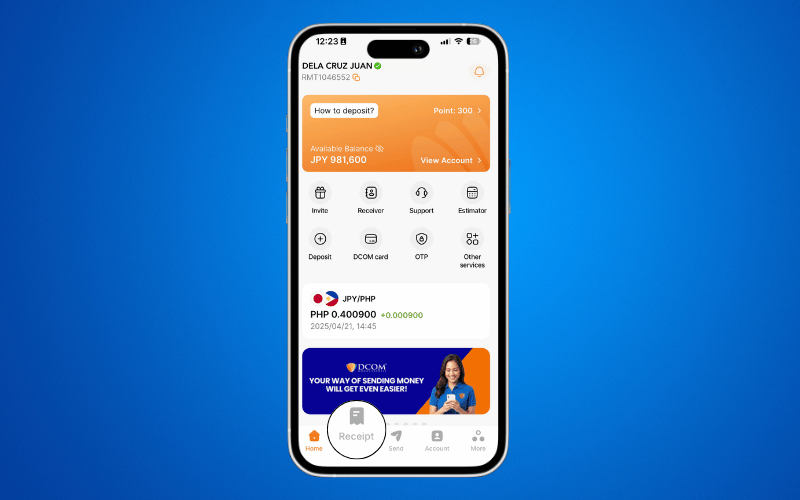
Step 1: From the homepage, click RECEIPT.
Step 2: Press UPLOAD RECEIPT.
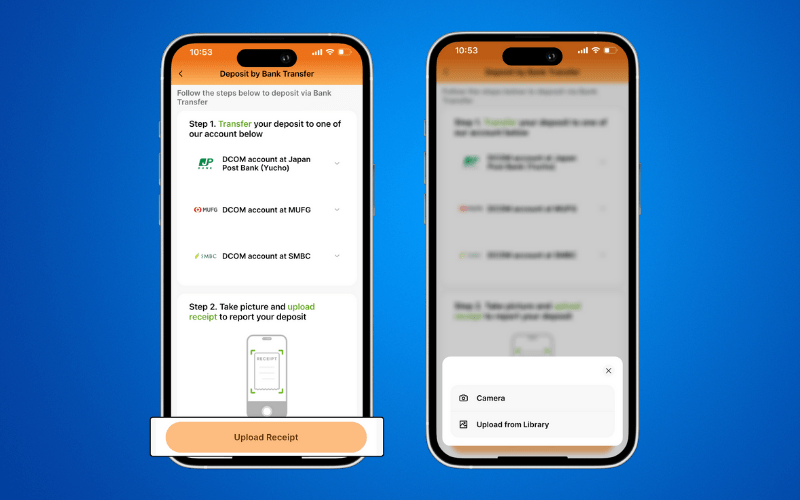
Step 3: Check your uploaded image and press UPLOAD.
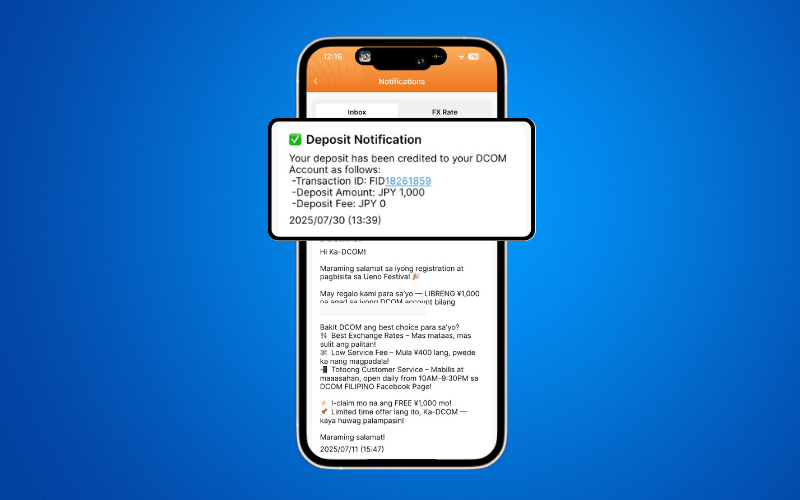
After you deposit, you can either wait for the exchange rates to go high or make a transaction request to send it to your receiver. You also have the option to withdraw your balance using the DCOM Card!