


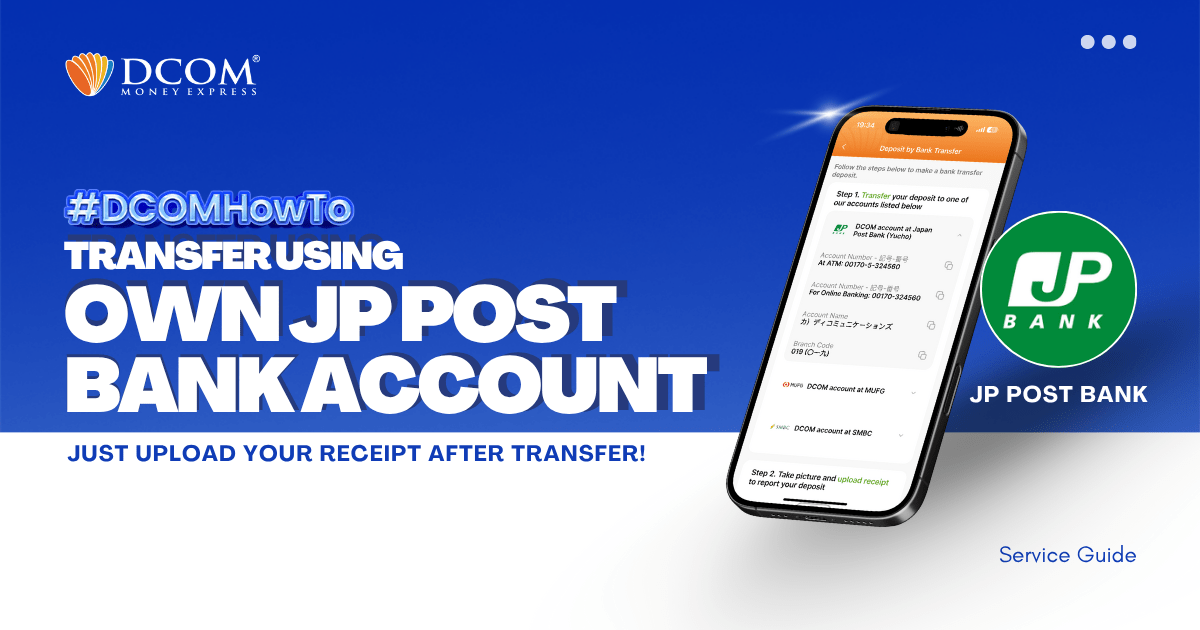
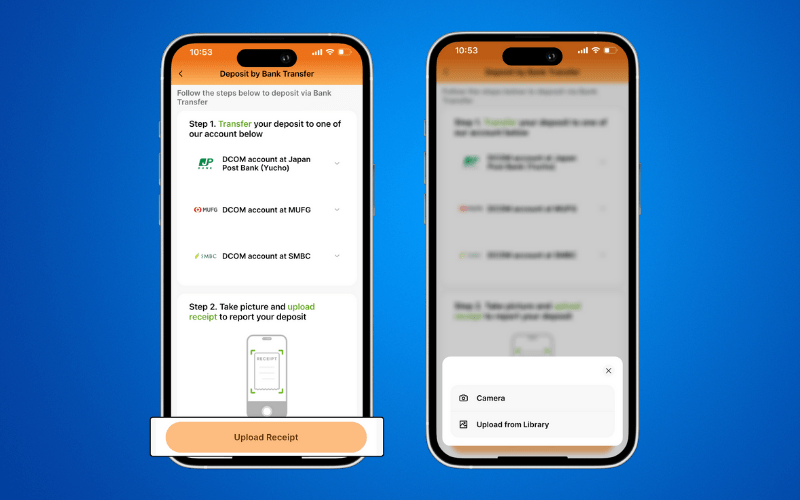
You can use your personal JP Post Bank Account to transfer to DCOM’s bank account. You can also use the DCOM Deposit Card (GOLD) for a faster funds reflection, click here for details:
- Deposit using DCOM Card at Lawson ATMs
- Deposit using DCOM Card at Yucho or JP Post Bank ATMs
- Deposit using DCOM Card at Seven Bank ATM
However, some still prefer using their own personal bank account since this is a much cheaper option, and here’s how:
Step 1: Insert your Passbook or Cash Card. Press ENGLISH GUIDE.
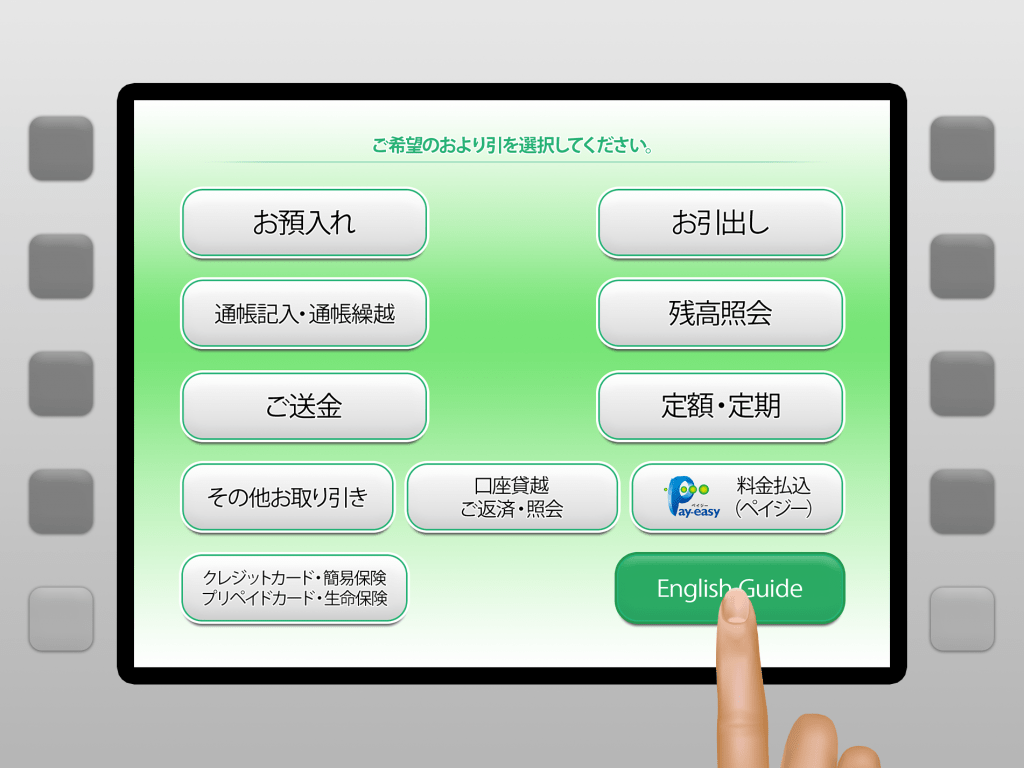
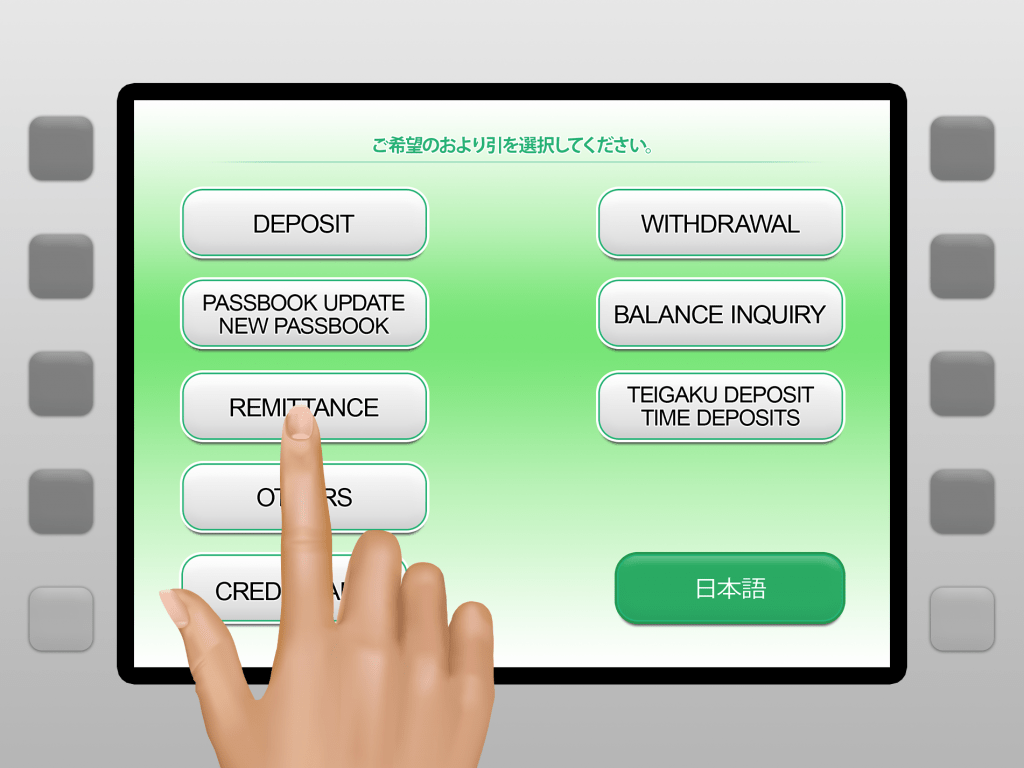
Step 2: Press REMITTANCE.
Step 3: Type your PIN NUMBER
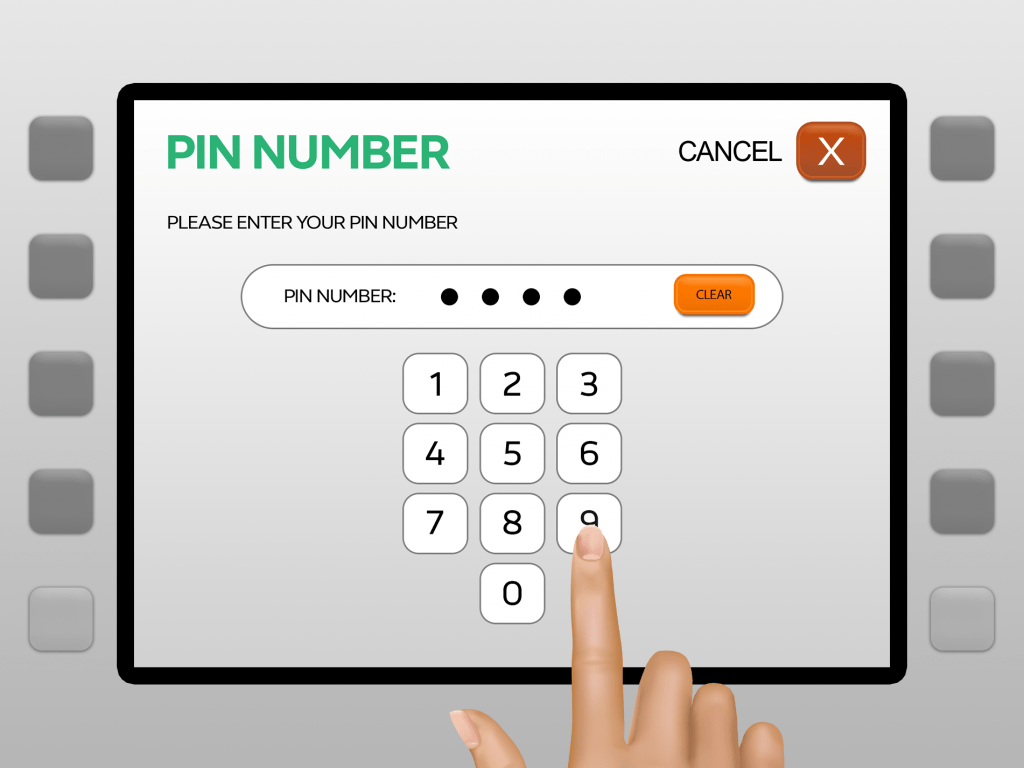
Step 4: Press ENTER
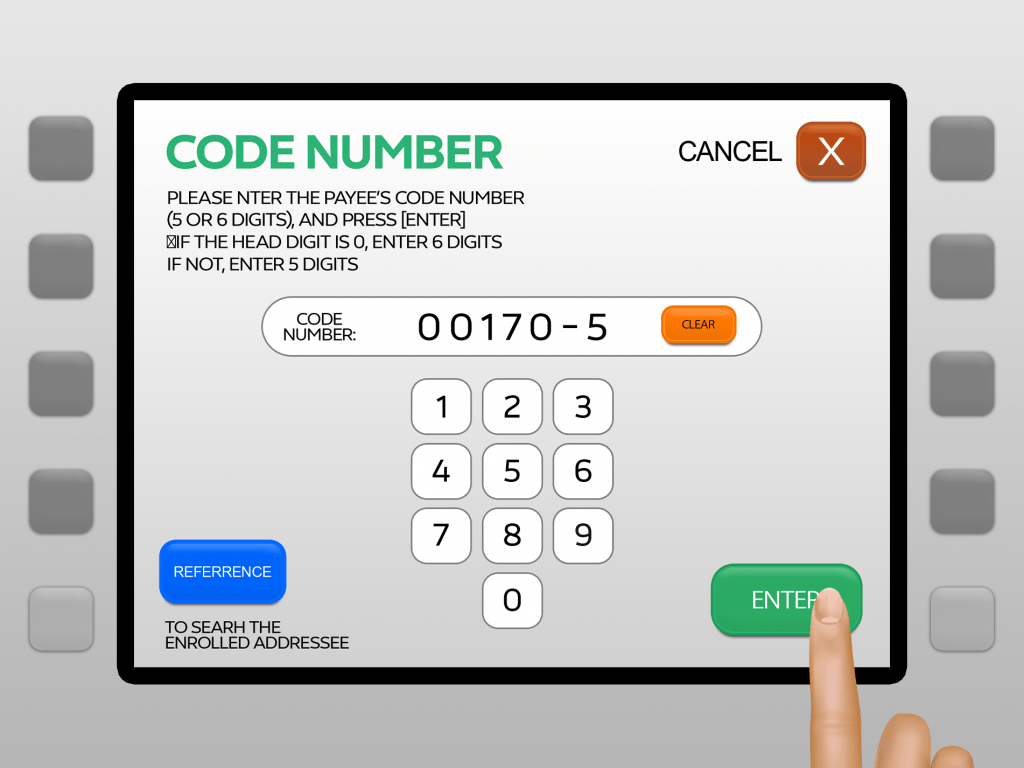
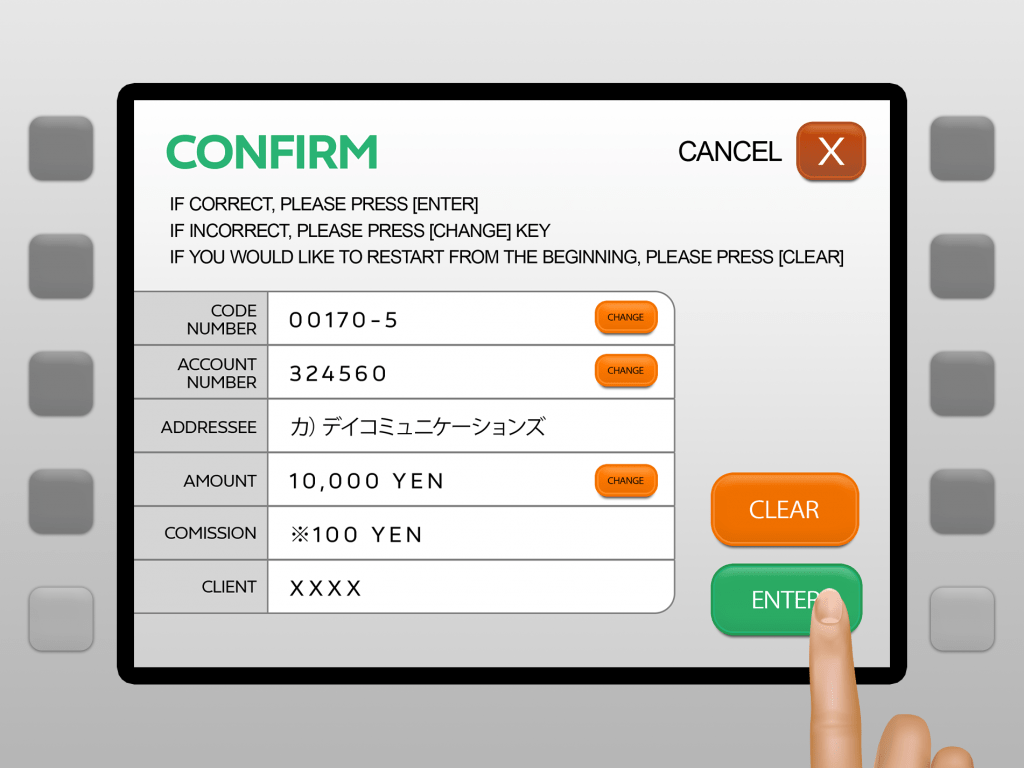
Step 5: Type 00170-5 in the CODE NUMBER screen.
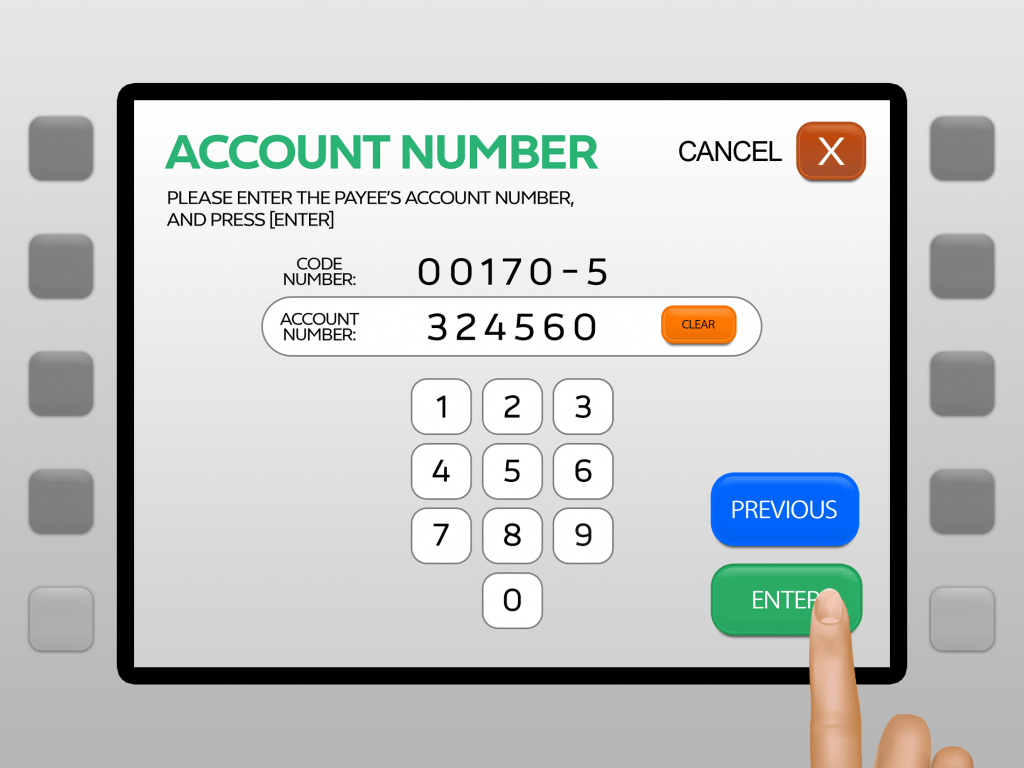
Step 6: Type-in 324560 in the ACCOUNT NUMBER screen
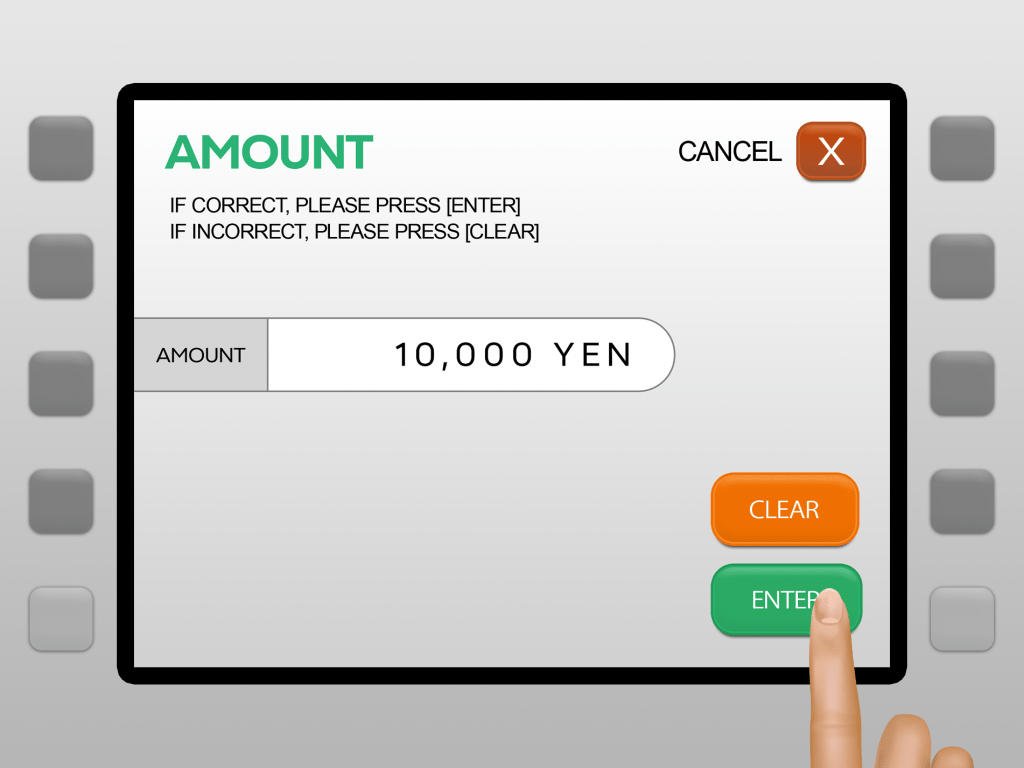
Step 7: Input the amount you want to send.
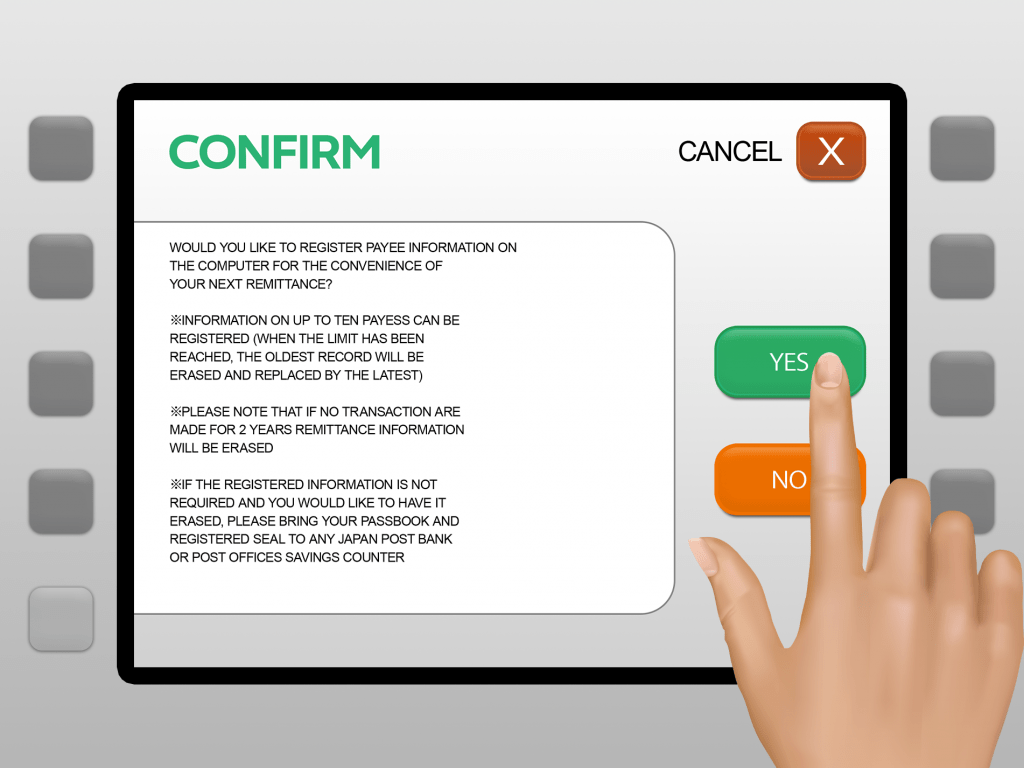
Step 8: Press Yes to save the payee information.
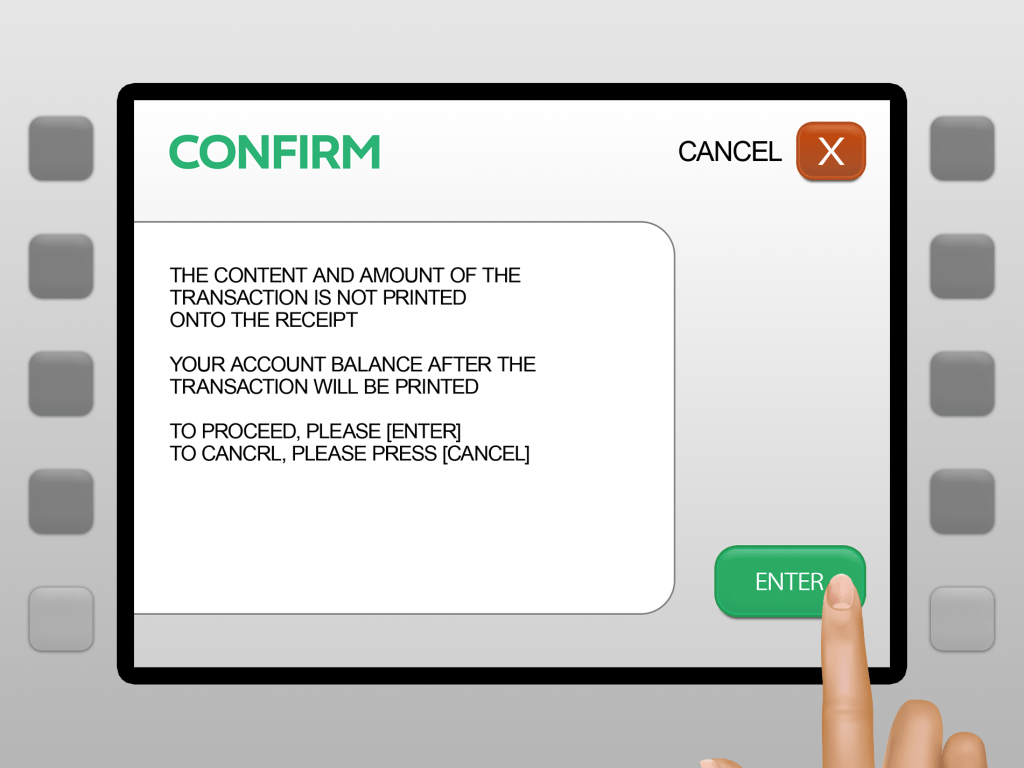
Step 9: Check the details and press ENTER.
Deposits will not be automatically uploaded to your DCOM Account. You must upload the receipt and report the transfer you made via DCOM App.
Also, you can only use YOUR OWN BANK ACCOUNT.
Transfers from other people’s bank account CANNOT be credited to your DCOM Account.
HOW TO UPLOAD RECEIPT VIA DCOM APP?
Step 1: From the Home screen, click RECEIPT.

Step 2: Press UPLOAD RECEIPT
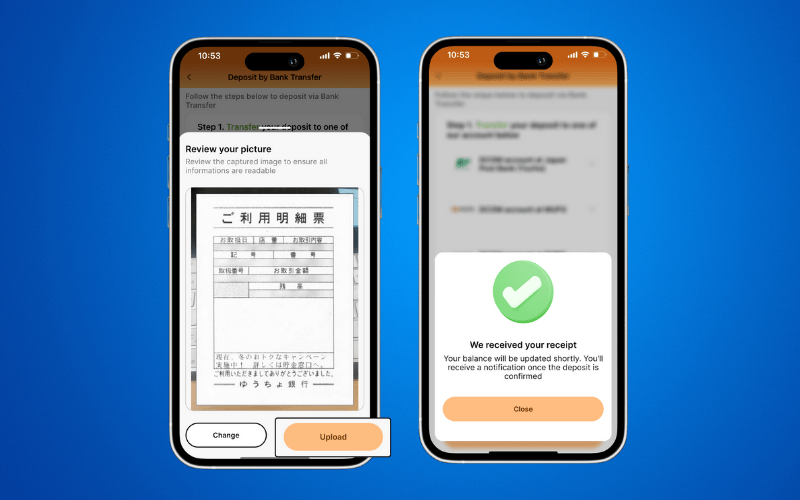
Step 3: Check your uploaded image and press UPLOAD.
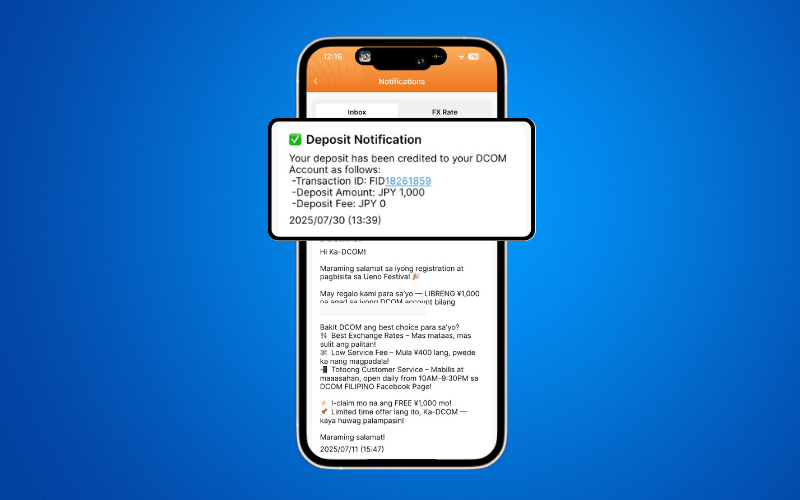
After you deposit, you can either wait for the exchange rates to go high or make a transaction request to send it to your receiver. You also have the option to withdraw your balance using the DCOM Card!